Creating a Work Order: Internal Team vs. External Service Provider
Choose Internal Team when people employed or managed inside your organisation will complete the job. Choose External Service Provider when the work must go to a preferred vendor or the marketplace. Define the property, asset, scope, priority and schedule before choosing the route so every assignee receives the same operational context.
What this article covers
This is the front-door guide to work-order creation. It explains the shared work details and the decision between internal and external fulfilment. Separate articles cover marketplace bidding, preferred vendors, bulk creation, recurrence and later work-order management.
Before you start
Confirm the property and any affected asset. Prepare a clear title, description, service category, priority, schedule, checklist, notes and supporting documents. For external work, confirm the available property budget and the appropriate NTE.
1. Start Create Work Order
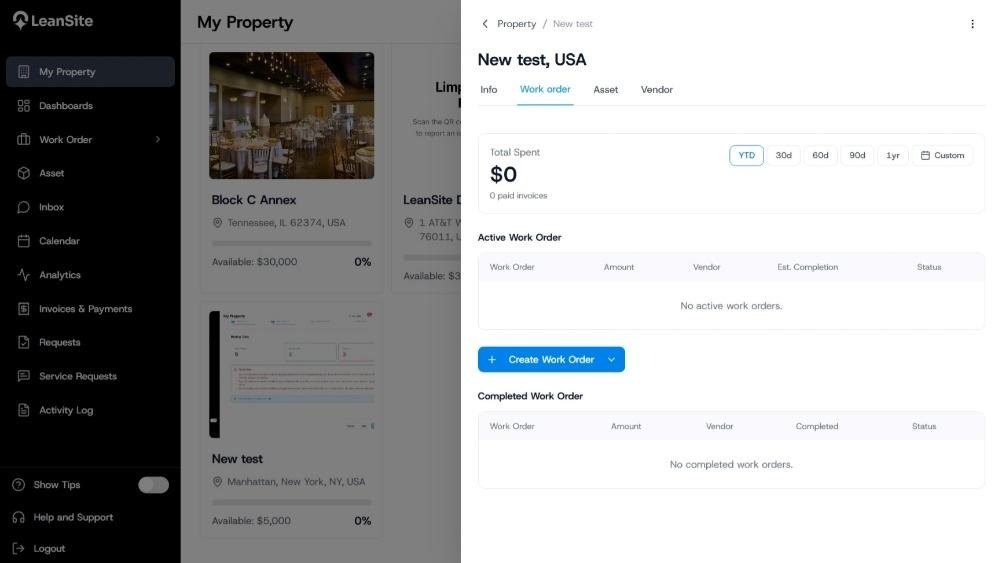
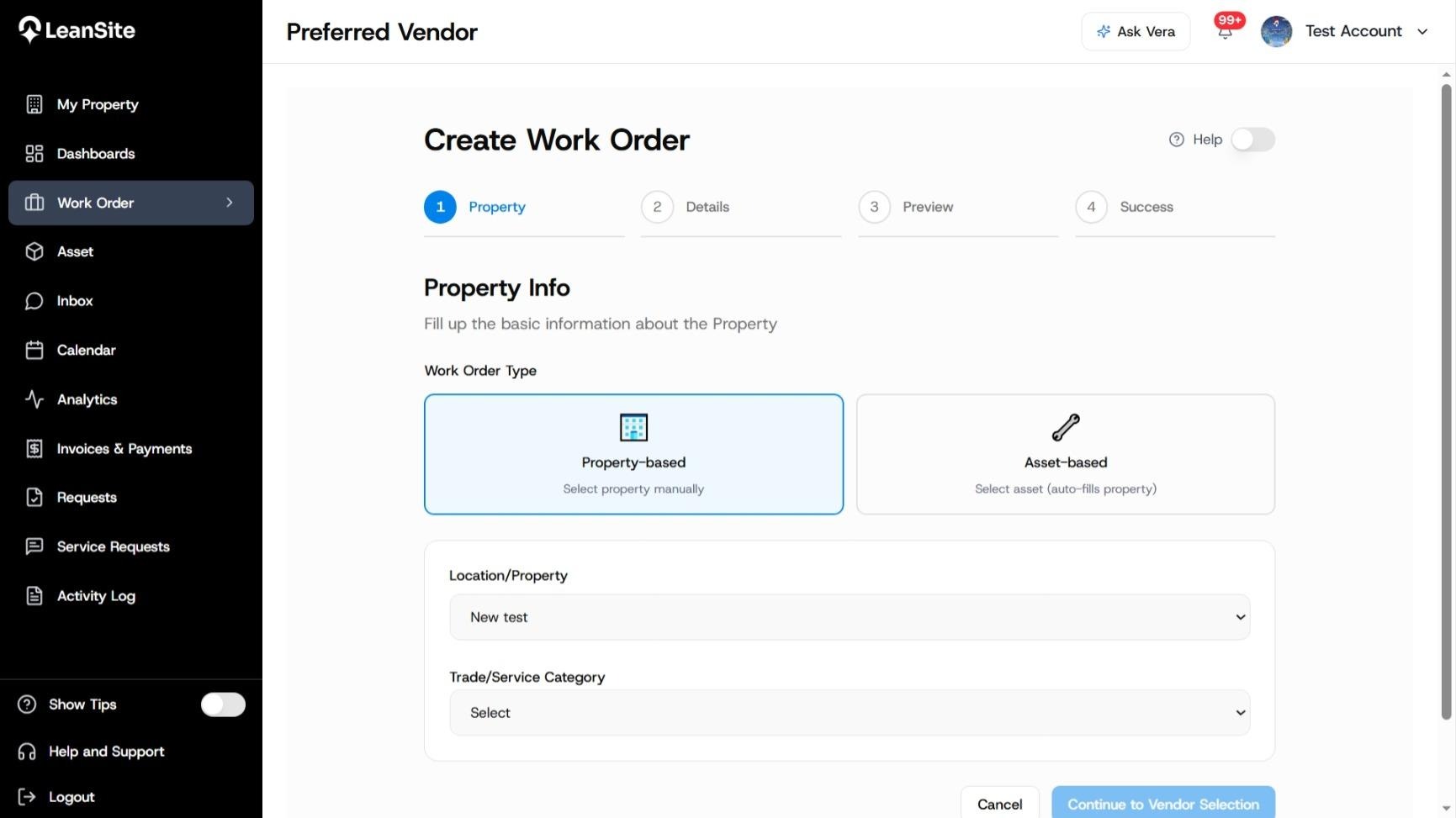
Open Work Order or select the property-scoped work-order action from Property Details. Start Create Work Order. A property-scoped start should carry the selected property into the new record; check it before continuing.
2. Define the work once
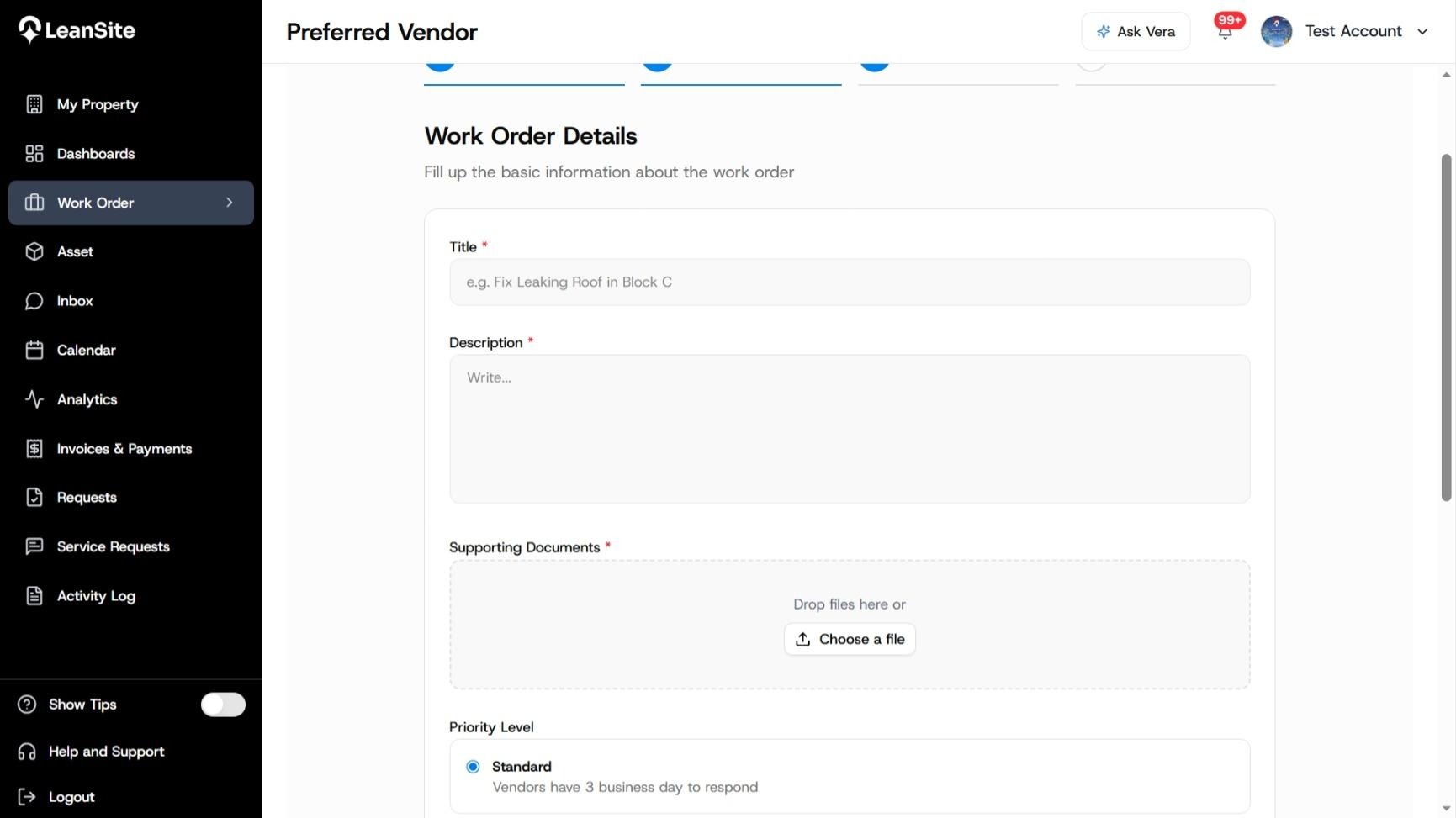
Select the property or location and the affected asset when the job concerns a recorded asset. Choose the service category, then enter a specific title and description. State what is wrong, where it is, the required outcome and any access or safety information. Add a checklist when completion must be proved through several actions. Attach photographs or documents that help the assignee assess the job.
3. Choose Internal Team for in-house work
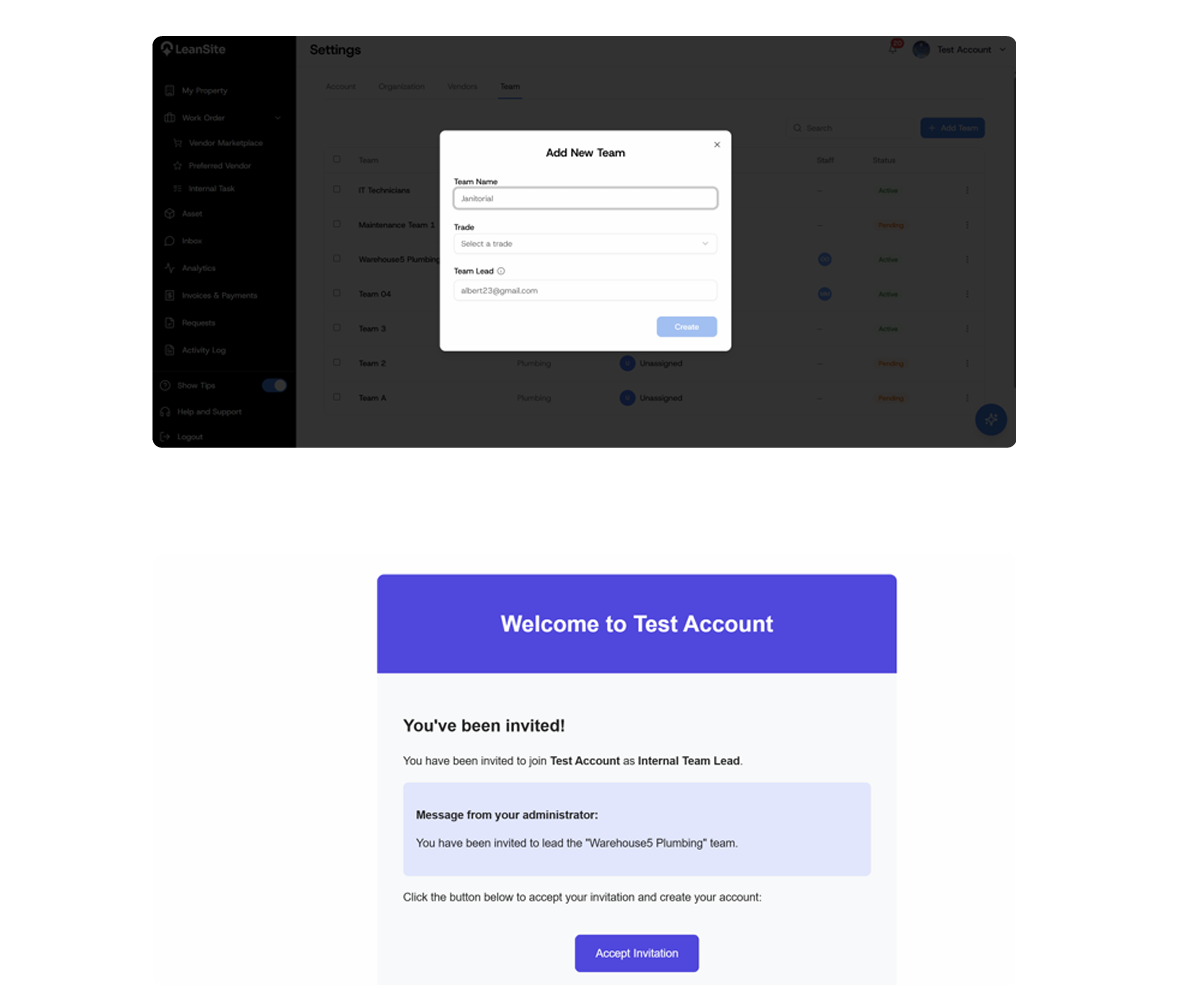
Select Internal Team at the assignment decision. LeanSite shows teams available for the work order’s property and service category. Choose the eligible team. Internal work bypasses the preferred-vendor and marketplace paths, and the external NTE and budget controls do not apply to this route.
After submission, the Team Lead receives the work in the Workforce experience and assigns it to a Team Member. The assigned member receives the task in the LeanSite Agent app, records progress and completes the checklist and evidence. Completion moves the record to Awaiting Verification for the appropriate review path.
4. Choose External Service Provider for outside work
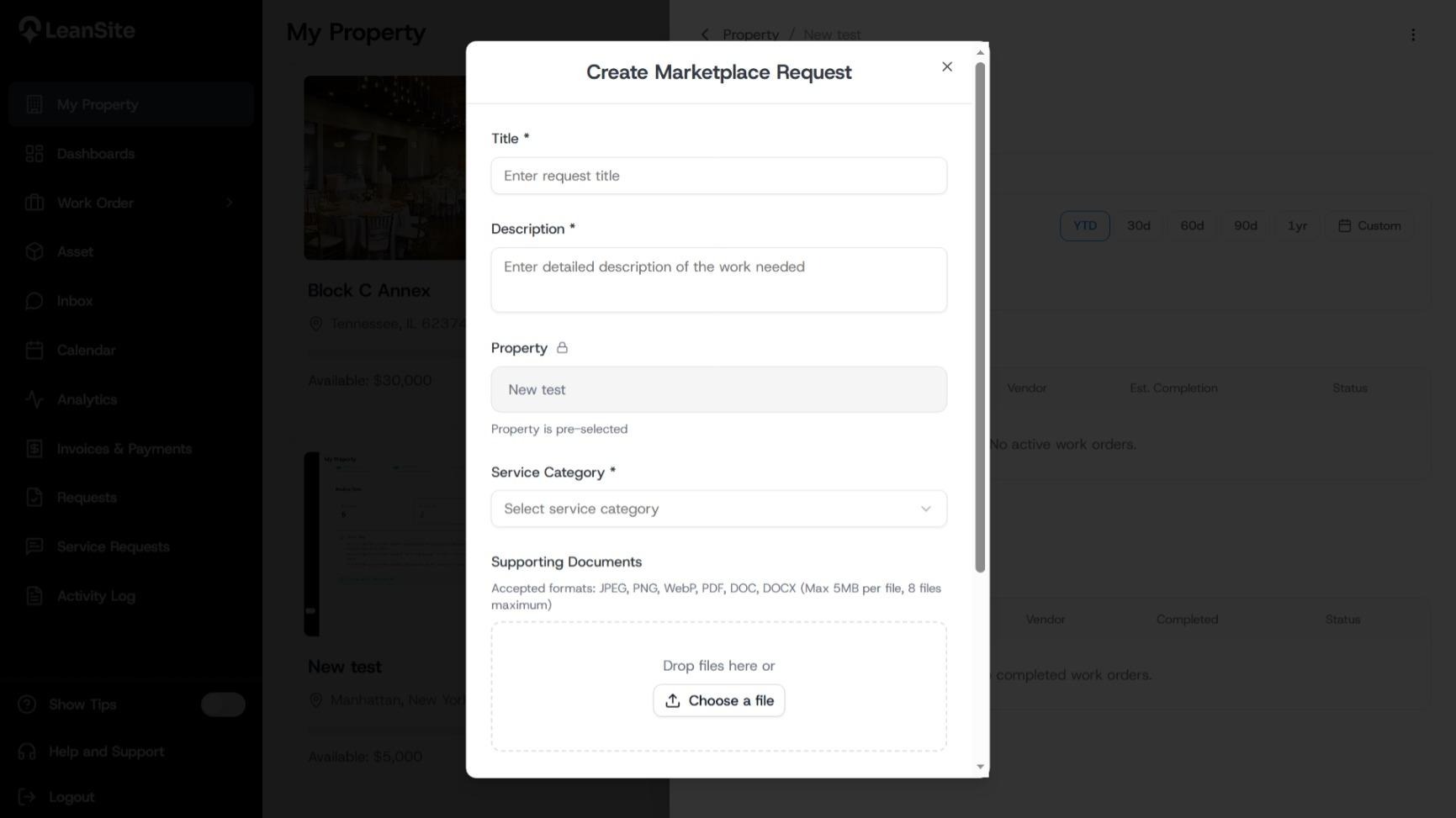
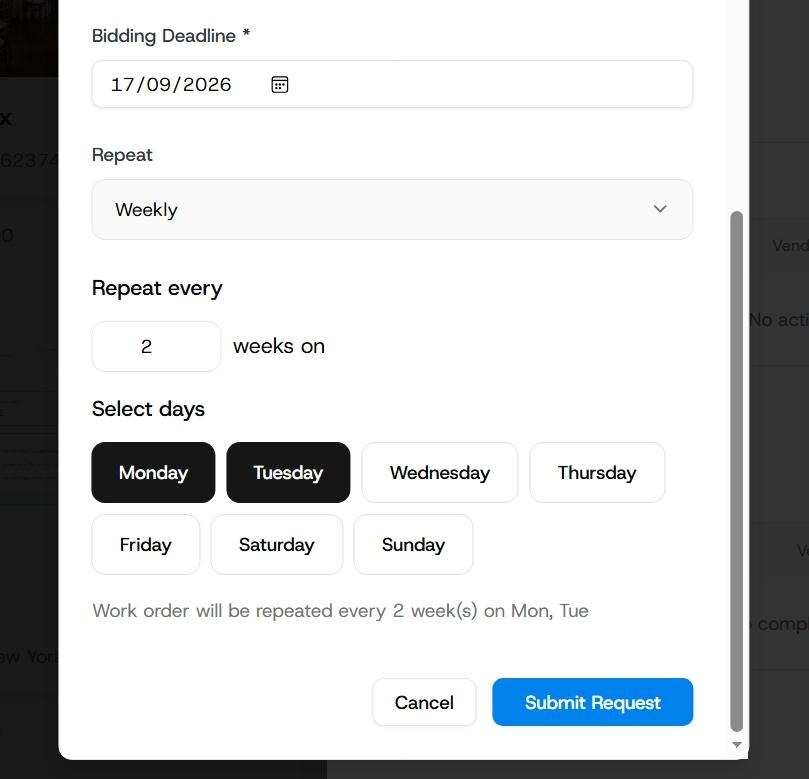
Select External Service Provider when an outside business will complete the job. Continue to the preferred-vendor route when an approved vendor already covers the property and service category. Use the marketplace route when the work needs competitive provider responses. Complete the NTE, response deadline and schedule required by the selected external route.
5. Review route-specific consequences
Before submission, confirm who will receive the work and which controls apply:
|
Decision |
Internal Team |
External Service Provider |
|---|---|---|
|
Assignee |
Property-scoped internal team |
Preferred vendor or marketplace provider |
|
Financial control |
No external NTE in the documented v1 route |
NTE and property-budget checks where supported |
|
Initial hand-off |
Team Lead delegates to a Team Member |
Vendor receives direct work or marketplace opportunity |
|
Field execution |
Workforce Portal and Agent app |
Service Provider experience |
|
Completion hand-off |
Completion proceeds to verification |
External completion and approval follow the selected provider route |
6. Submit and confirm the record
Review the property, asset, assignment route, scope, priority, timing, checklist, attachments and financial controls. Submit the work order. Open the created record and confirm its ID, initial status and assignee or sourcing route. Use the related route guide for bidding, acceptance or delegation details.
Expected result
The work order contains a complete scope and follows the correct fulfilment path. Internal work reaches the eligible property team. External work reaches the chosen preferred vendor or enters the marketplace with the relevant financial and response controls.
If the expected assignee is unavailable
Check the property’s internal-team or preferred-vendor coverage for the selected service category. Correct the setup before creating the order. Do not choose a different route solely to bypass missing team, vendor or permission configuration.
Still need a hand?
Contact your Customer Success Manager or reach our support team.
More from the Knowledge Base
- Work Orders
Respond to Marketplace or Direct Work as a Vendor
Open each new opportunity or assignment from its LeanSite notification, confirm the property, asset, scope, deadline and commercial terms, then respond through…
- Work Orders
Create one marketplace work order
Create a marketplace work order to get competitive bids from external vendors. Define the scope, set response deadlines and publish the request for your…
- Work Orders
Invite and Manage a Preferred Vendor
Add a preferred vendor from Settings > Vendors. Select the trade or service category, then choose a vendor from completed marketplace work or invite a new…