Invite and Manage a Preferred Vendor
Add a preferred vendor from Settings > Vendors. Select the trade or service category, then choose a vendor from completed marketplace work or invite a new vendor by email. LeanSite adds accepted vendors to a ranked list for that category. Ranking changes affect new work orders, while active work orders retain their existing vendor routing.
What this article covers
This guide covers creating and managing the preferred-vendor relationship. It does not create a work order or change the vendor on work that is already active.
Before you start
You need permission to manage vendors. Confirm the trade or service category and the vendor’s correct email address. Review any existing preferred-vendor list for the category before adding another company.
1. Open Vendor settings
Open Settings and select Vendors. Choose the relevant Trade/Service. The page shows preferred-vendor cards for that category, including rank, rating, jobs completed, date added, contact information, notes and available management actions.
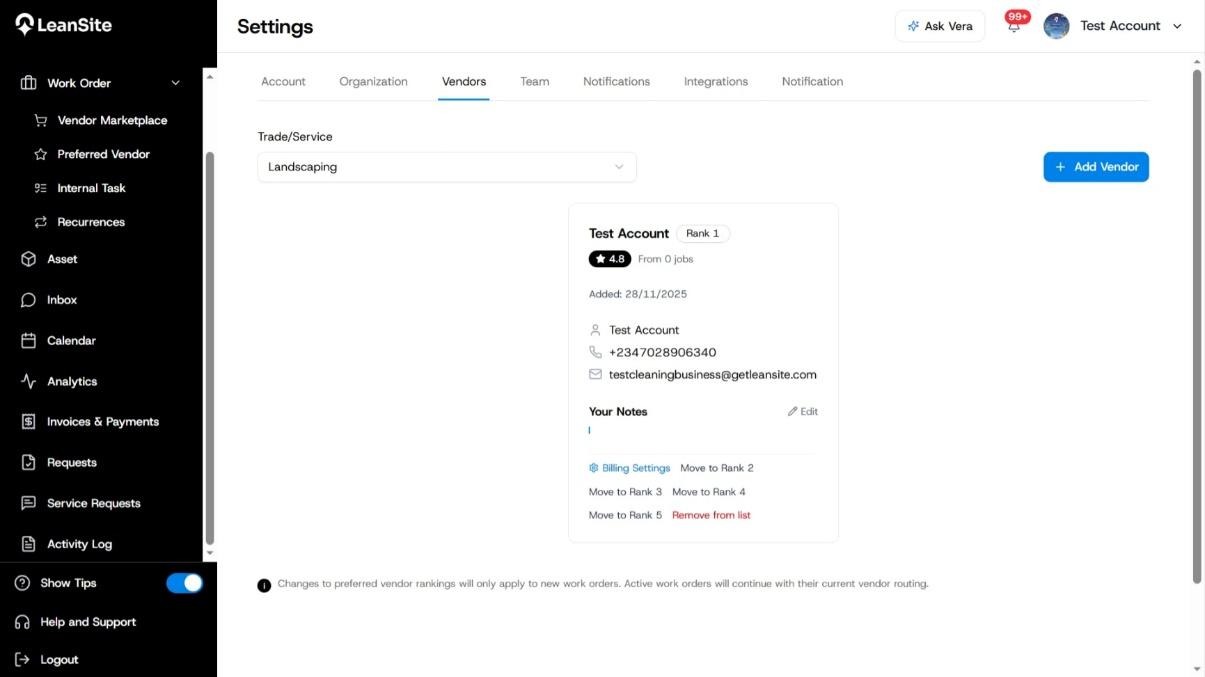
2. Start adding a vendor
Select Add Vendor, choose the Trade/Service Category, then select one of the two routes:
- Search Marketplace finds vendors from completed marketplace work.
- Invite New Vendor invites a vendor who is not yet on the platform.
Select Continue after choosing the route.
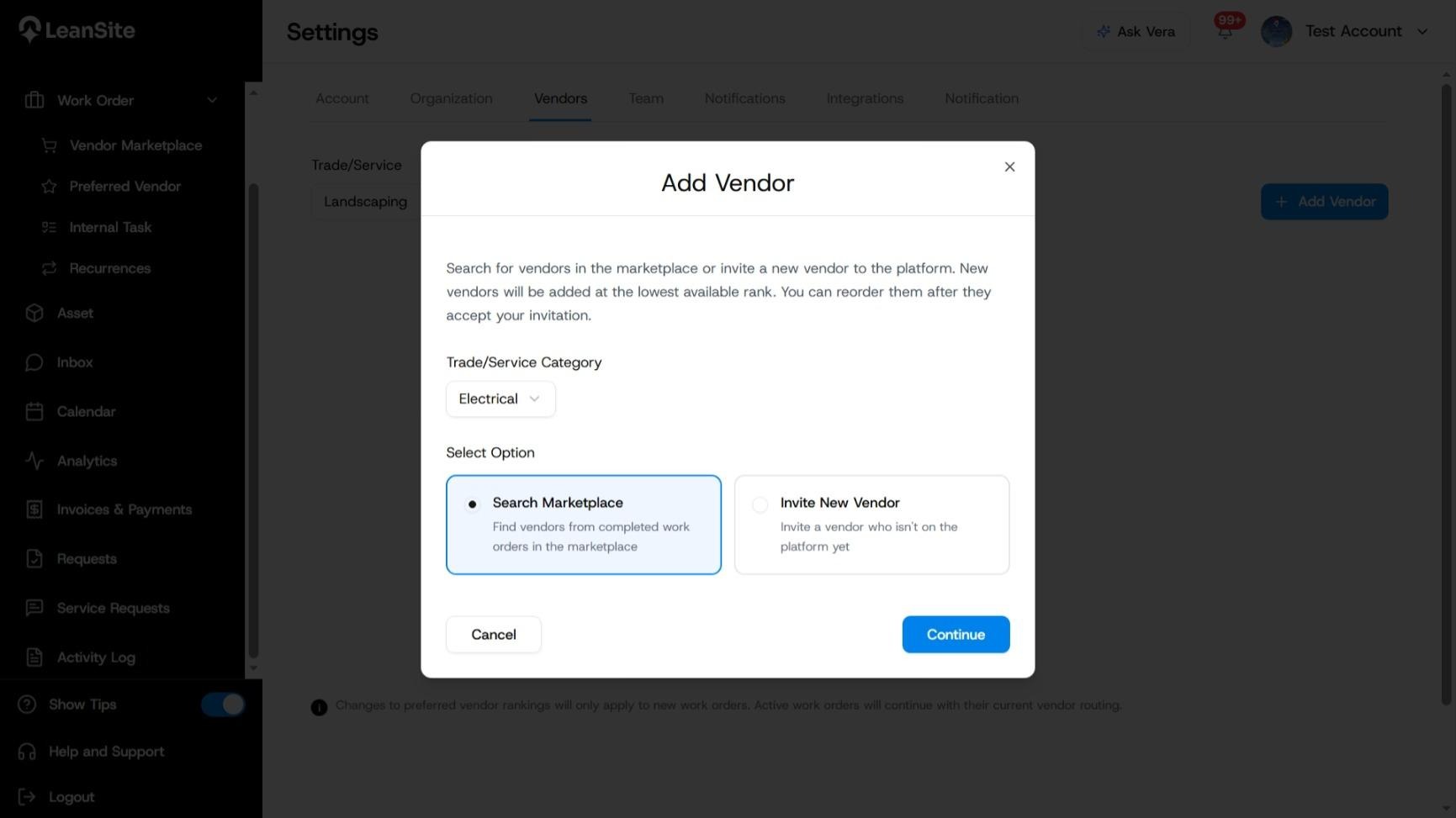
3A. Add a vendor from the marketplace
Use Search Marketplace when the organisation has completed marketplace work with the vendor. Review the available vendor and select the company you want to add for the chosen category. Confirm the position it will take in the preferred-vendor list.
3B. Invite a new vendor
Use Invite New Vendor when the company is not yet on the platform. Select the proposed Rank, enter the required Email Address and add a useful Note, then select Continue.
The vendor joins the preferred list after accepting the invitation. The Add Vendor guidance states that new vendors are placed at the lowest available rank and can be reordered after acceptance.
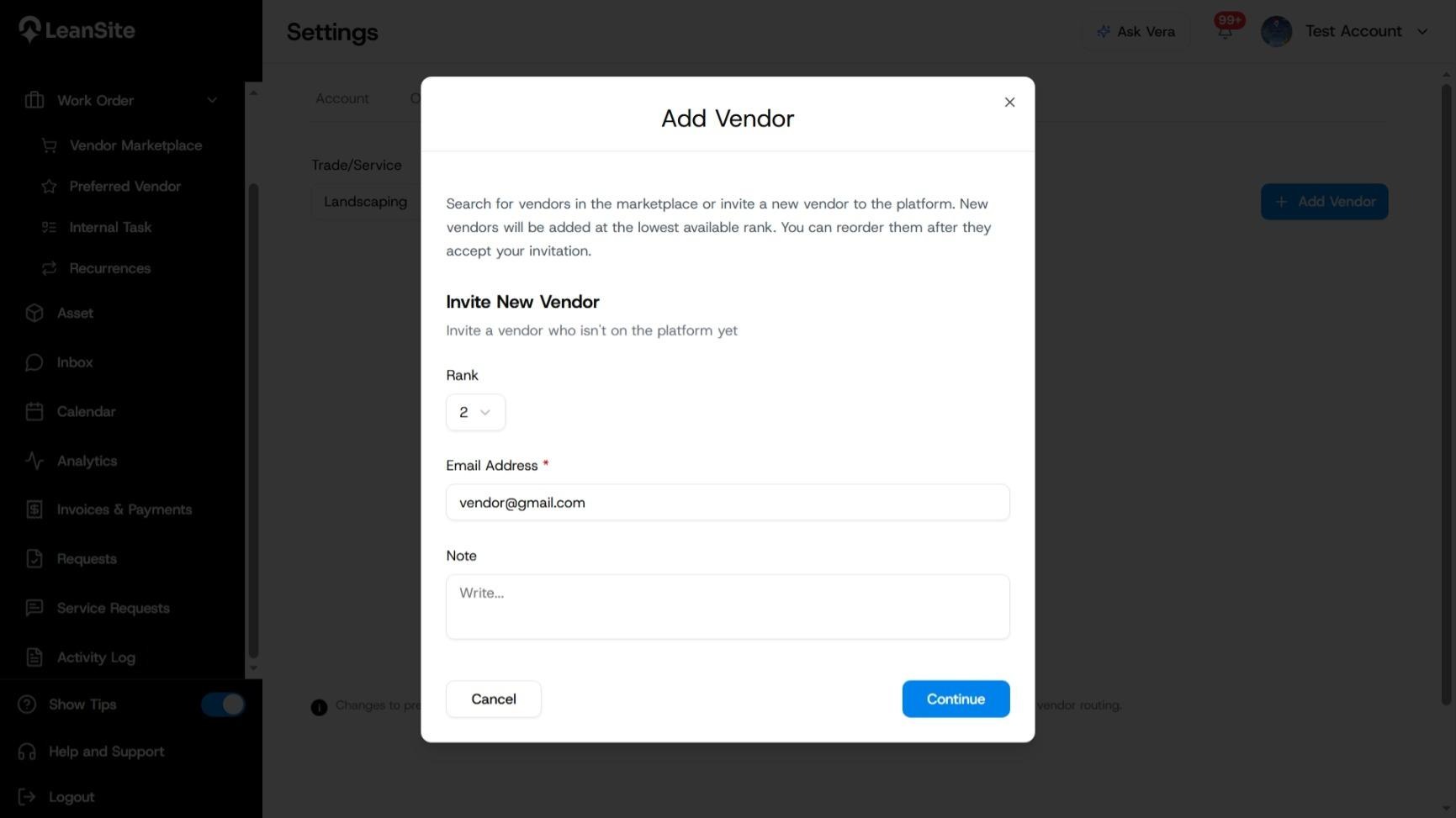
4. Review the preferred-vendor order
Return to Settings > Vendors, select the trade or service, and review the ranked cards. Use the available rank actions to move a vendor to another position. You can also update Your Notes, open Billing Settings or remove a vendor from the list through the card’s controls.
Ranking changes apply to new work orders. Existing active work orders continue with their current vendor routing.
Expected result
The accepted vendor appears in the preferred list for the selected trade or service category with a rank and vendor details. New eligible work can use the updated routing order.
If the vendor does not appear
Check that the correct trade or service category is selected. For an invited vendor, confirm the email address and whether the invitation has been accepted. Keep existing active work orders with their current vendor unless their own work-order controls are used to change the assignment.
Still need a hand?
Contact your Customer Success Manager or reach our support team.
More from the Knowledge Base
- Work Orders
Respond to Marketplace or Direct Work as a Vendor
Open each new opportunity or assignment from its LeanSite notification, confirm the property, asset, scope, deadline and commercial terms, then respond through…
- Work Orders
Create one marketplace work order
Create a marketplace work order to get competitive bids from external vendors. Define the scope, set response deadlines and publish the request for your…
- Work Orders
Create recurring preferred-vendor work orders
Create a recurring preferred-vendor work order for planned work that repeats on a predictable pattern, such as cleaning, inspection or maintenance. You set the…