Increase a Property Budget
Use Adjust Budget on a property’s Info tab when its annual budget limit needs to change. LeanSite shows the current limit, asks for the revised limit and requires a reason for the adjustment. Review the property’s committed and spent amounts before saving so the new limit reflects work that has already been authorised or completed.
What this article covers
This guide covers a direct adjustment to one property’s annual budget. To move existing funds from one property to another, use Transfer Budget and follow the transfer guide.
Before you start
You need access to the property’s financial information and permission to adjust its budget. Prepare the revised total limit and a clear reason that another authorised user can understand later.
1. Open the property
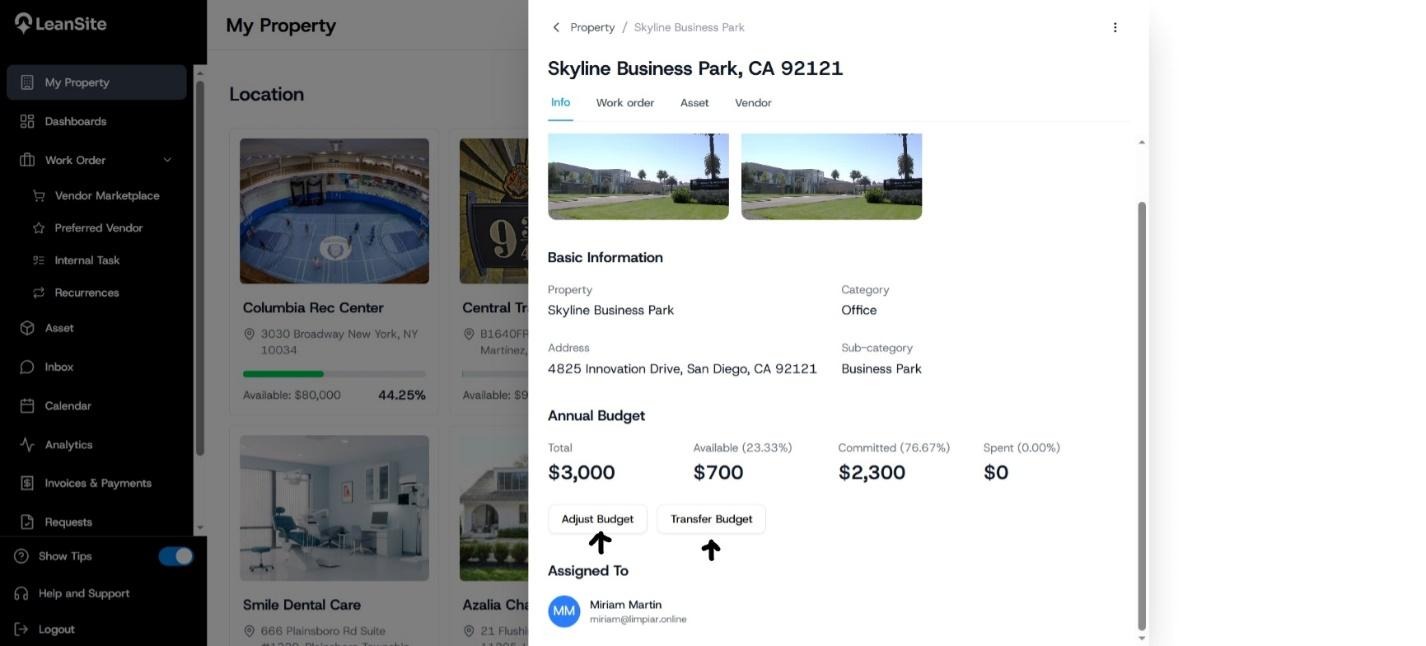
Select My Property, then open the property whose budget you need to change. On the Info tab, review the Annual Budget summary, including Total, Available, Committed and Spent.
2. Open the adjustment fields
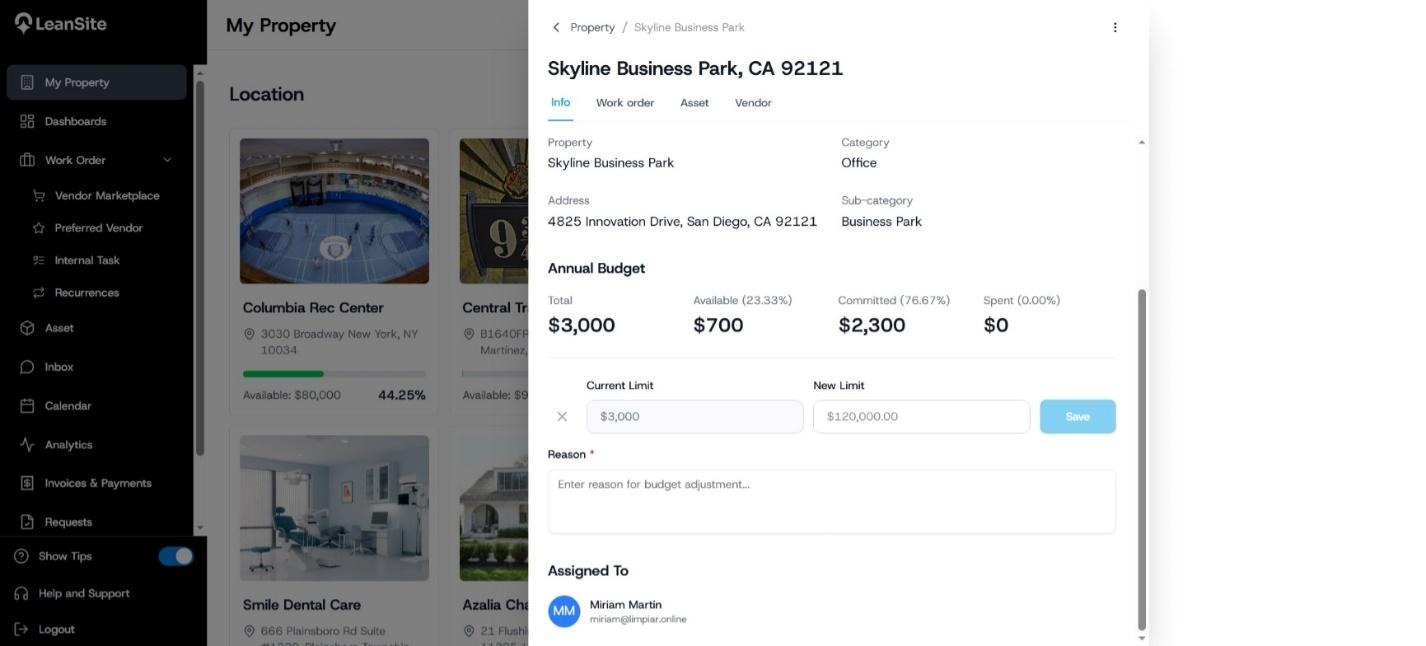
Select Adjust Budget. LeanSite displays the Current Limit, New Limit and a required Reason field.
3. Enter the revised limit
Enter the property’s revised overall budget in New Limit. This field expects the total limit after the adjustment. Compare it with the current limit and the property’s committed and spent values before continuing.
4. Record the reason
In Reason, explain why the limit is changing. Include the operational or approved financial basis for the change so that the adjustment can be understood during a later review.
5. Save the adjustment
Check the figures and select Save. Return to the Annual Budget summary and confirm that the Total and related values reflect the approved change.
Expected result
The property’s annual budget shows the revised total limit. The reason supplied with the change provides context for the financial record and subsequent review.
If you cannot save the change
Check that New Limit contains the revised total and that Reason has been completed. If the action is unavailable, ask the organisation’s authorised budget owner to make or approve the change. If the summary does not update after a successful save, record the property name, the previous and revised limits, and contact LeanSite Support.
Still need a hand?
Contact your Customer Success Manager or reach our support team.
More from the Knowledge Base
- Budgets & NTEs
Understand Budgets and Not-to-Exceed Limits
LeanSite uses property budgets to show how much money has been allocated, committed and spent at each property. A not-to-exceed limit, usually shown as NTE…
- Budgets & NTEs
Transfer Funds Between Property Budgets
Use Transfer Budget to move an amount from the property you are viewing to another property. The transfer form records the destination, amount and reason, and…
- Budgets & NTEs
Request and Review an NTE Increase
Raise an NTE increase when the authorised value of an external work order no longer covers the approved scope. The request stays linked to that work order and…