


What this article covers
This guide explains notification channels, event groups, read states, deep links, grouping and the current v1 limits. The Activity Log remains the fuller historical record when you need to investigate an event after the notification has been cleared.
Before you start
Confirm that your LeanSite email address is current. Agents should allow operating-system notifications for the LeanSite Agent app. The v1 release uses the default channel logic for each role and event; individual users cannot configure per-event channel preferences.
1. Open the notification feed
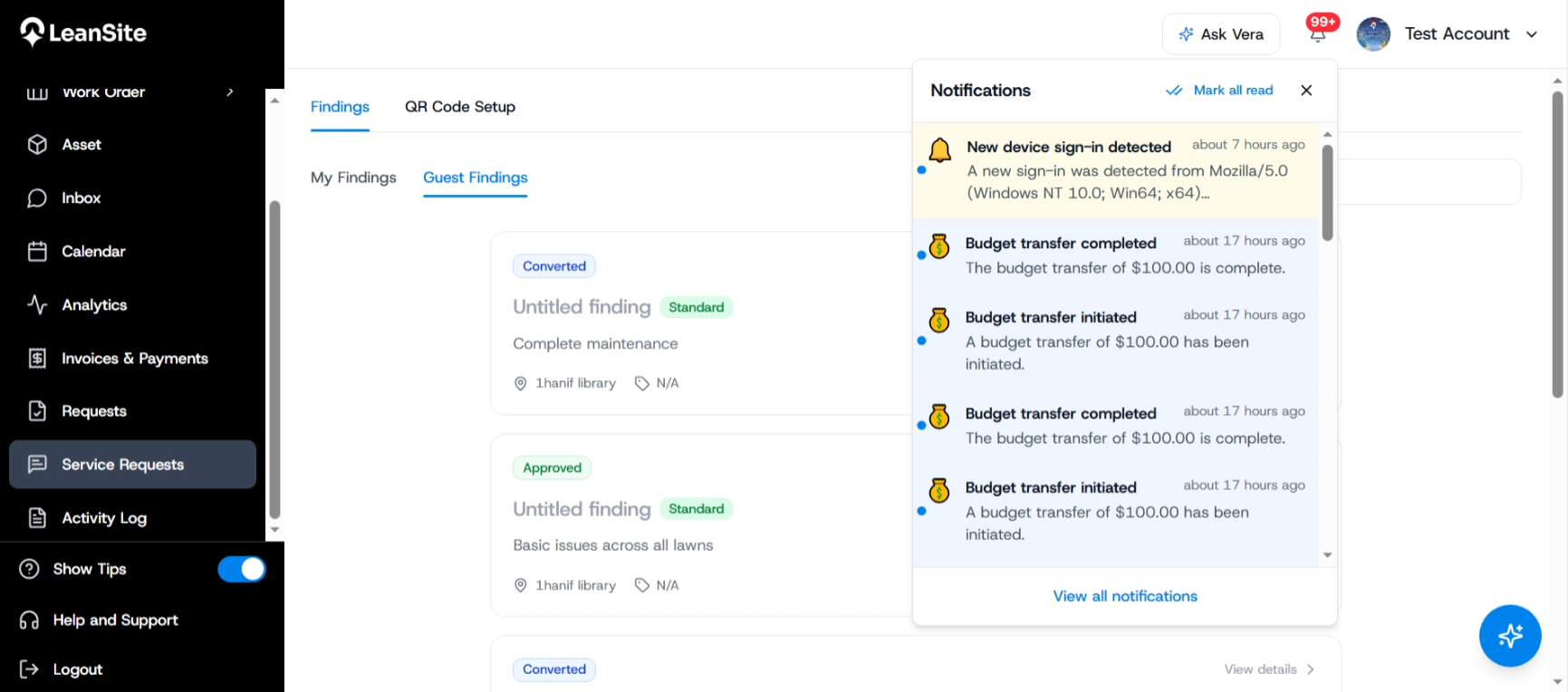
Select the bell in the top navigation.

Its badge shows unread activity. Each item includes an event description, timestamp and link to the relevant record.
2. Open the related operating record
Select a notification to follow its deep link to the work order, budget request, quote, invoice, message, vendor relationship, invitation, property, asset or account event that produced it. Opening the item marks it as read. Use Mark all as read when you have reviewed the feed. Use the current clear or dismiss action only after the notices no longer require attention.
An approval notice may show an action in the feed. Review the underlying record and its context before approving or rejecting it.
3. Understand the delivery channels
|
Channel |
Primary use in the documented release |
|---|---|
|
In-app web |
First channel for active FM Portal and Service Provider Portal users |
|
Mobile push |
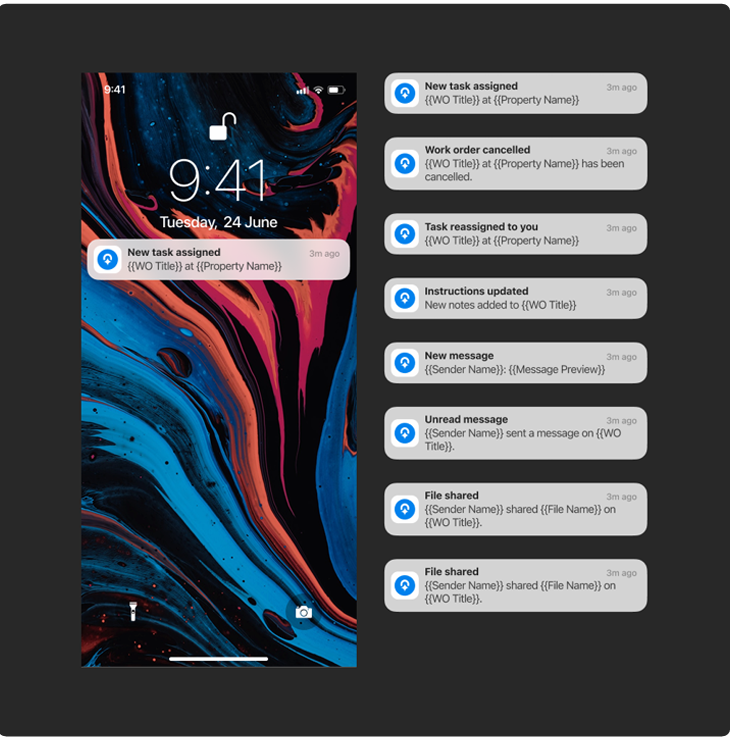
Agent assignments, reassignment, cancellation, instruction updates and messages, subject to device permission and connectivity |
|
|
High-importance events and events sent while the relevant user is offline |
High-importance examples in the release note include 100% NTE breaches, payment failures and urgent assignments. Payment-received email to a service provider is treated as a high-priority transactional notice.
4. Identify what triggered the notice
The internal trigger register groups 70 documented events across nine domains:
|
Domain |
Examples of documented triggers |
|---|---|
|
Work Orders |
Created, assigned, started, status changed, completed, confirmed, cancelled, overdue or reassigned; notes updated |
|
Budget & NTE |
Budget set; NTE set or updated; 80% warning; 100% breach; adjustment requested, approved or rejected; transfer initiated or completed |
|
Quotes & Estimates |
Requested, submitted, approved, rejected or revised; review code requested |
|
Payments & Invoicing |
Invoice generated or sent; payment received, failed or overdue; payout initiated or completed; dispute raised |
|
Messaging |
New message, offline digest, attachment shared or direct FM and service-provider message |
|
Preferred Vendors |
Invitation sent, accepted or declined; status removed; application approved or rejected |
|
Invitations & Onboarding |
Organisation or business invitation sent, accepted or expired; role updated; member removed |
|
Property & Assets |
Property added or assigned; asset linked to work; asset flagged for maintenance |
|
System & Admin |
Account creation, password events, new-device login, maintenance announcement, deactivation or feature update |
Use the event wording and linked record to decide what action is required. A notification confirms that an event was raised. The operating record shows its current state.
5. Understand grouping and duplicate control
LeanSite can group several status changes from the same work order within a short window. Multiple unread messages in one thread can appear as one notification. An unread 80% or 100% budget warning should not repeat. These controls reduce repeated alerts while keeping the underlying events available in their records and audit trail.
6. Use calendar reminders within their defined scope
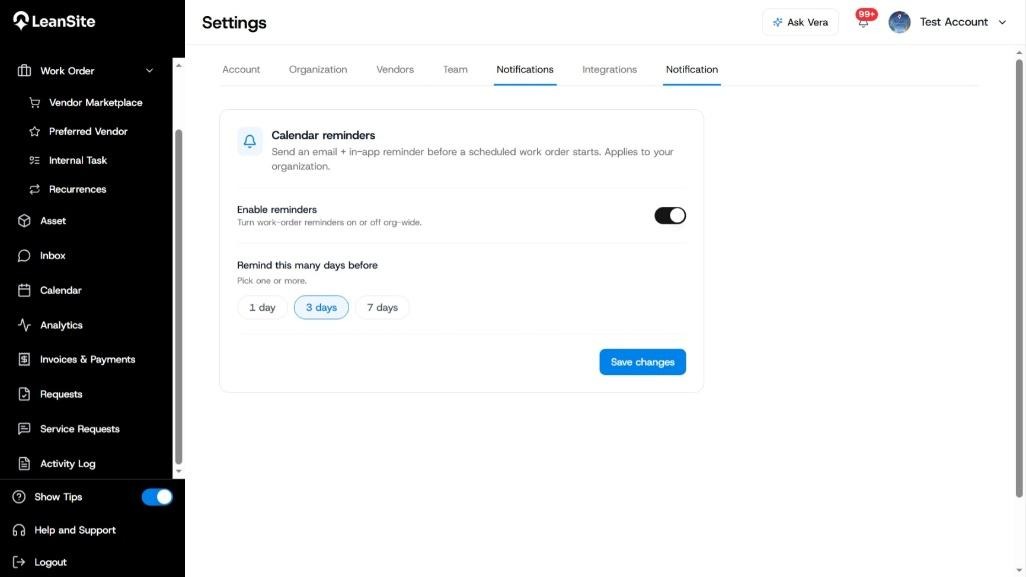
The supplied Settings screen shows organisation-wide email and in-app reminders for scheduled work orders, with visible choices of 1 day, 3 days or 7 days before the scheduled date. Treat these as work-order calendar reminders. They do not prove a general personal notification-preference centre.
7. Know the current limits
The documented v1 release does not support SMS, Slack, third-party webhooks, multilingual templates or individual per-event notification preferences. Notification logs in the Admin Portal retain 30 days according to the internal note. Confirm retention in the current release before stating it in administrator-facing material.
Expected result
You can recognise the event that generated a notification, open its operating record, distinguish web, mobile and email delivery, clear reviewed items and use the Activity Log when you need a broader historical trail.
If an expected notification is missing
Open the affected operating record and confirm that the triggering event occurred. Check the user’s role, registered email address, Agent app permission, device connectivity and current unread feed. An Org Owner can use available administrator logs to confirm delivery. Contact LeanSite Support with the record ID, event, expected recipient and approximate time when the event is absent from both the feed and audit evidence.