Leansite
  • PLATFORM

    • Leansite Platform

      Your all-in-one hub for autonomous property operations

    • Leansite Managed Services

      Extend your team with trusted cleaning, maintenance, and vendor partners.

    • Leansite App Service

      Mobile-first tools for internal teams to streamline daily operations.

    Leansite automated operations

    Automated operations
    made simple

    LeansiteLeansiteLeansite
    Request Demo
    Leansite
  • Features
  • Industries
    • Blog & Insights
    • Case Studies
    • Podcast
    • Articles
    • Guides & Whitepapers
    • Webinars & Events
    • Learning
  • About
  • Service network
Login
Leansite

Chat with us

The support team is always
available 24/7

LeansiteChat via Whatsapp
LeansiteChat via Viber
LeansiteChat via Messager

Office Address

Dallas, Texas
United States

Phone Number

(833) 546 - 7427

Business Emails

[email protected]

Help support

Email [email protected] For help with a current product or service or refer to FAQs and developer tools.

  1. Knowledge Base
  2. General
LeansiteGeneral

Create an Asset

Create an asset to give a property-level item its own ID, status, specifications and work history. Every asset belongs to one property. After it is saved, the asset can be selected when work is created, and its record can show the work orders and vendors connected to its maintenance history.

Updated September 10, 20262 min read

What this article covers

This guide covers creating one asset and maintaining its core record. Use the bulk-import guide when you need to add many assets from a CSV file.

Before you start

You need access to the property’s asset inventory and permission to create or edit assets. Prepare the asset name, type, class and location. Add the serial number, purchase details, warranty information and technical documentation when they are available.

1. Open the asset inventory

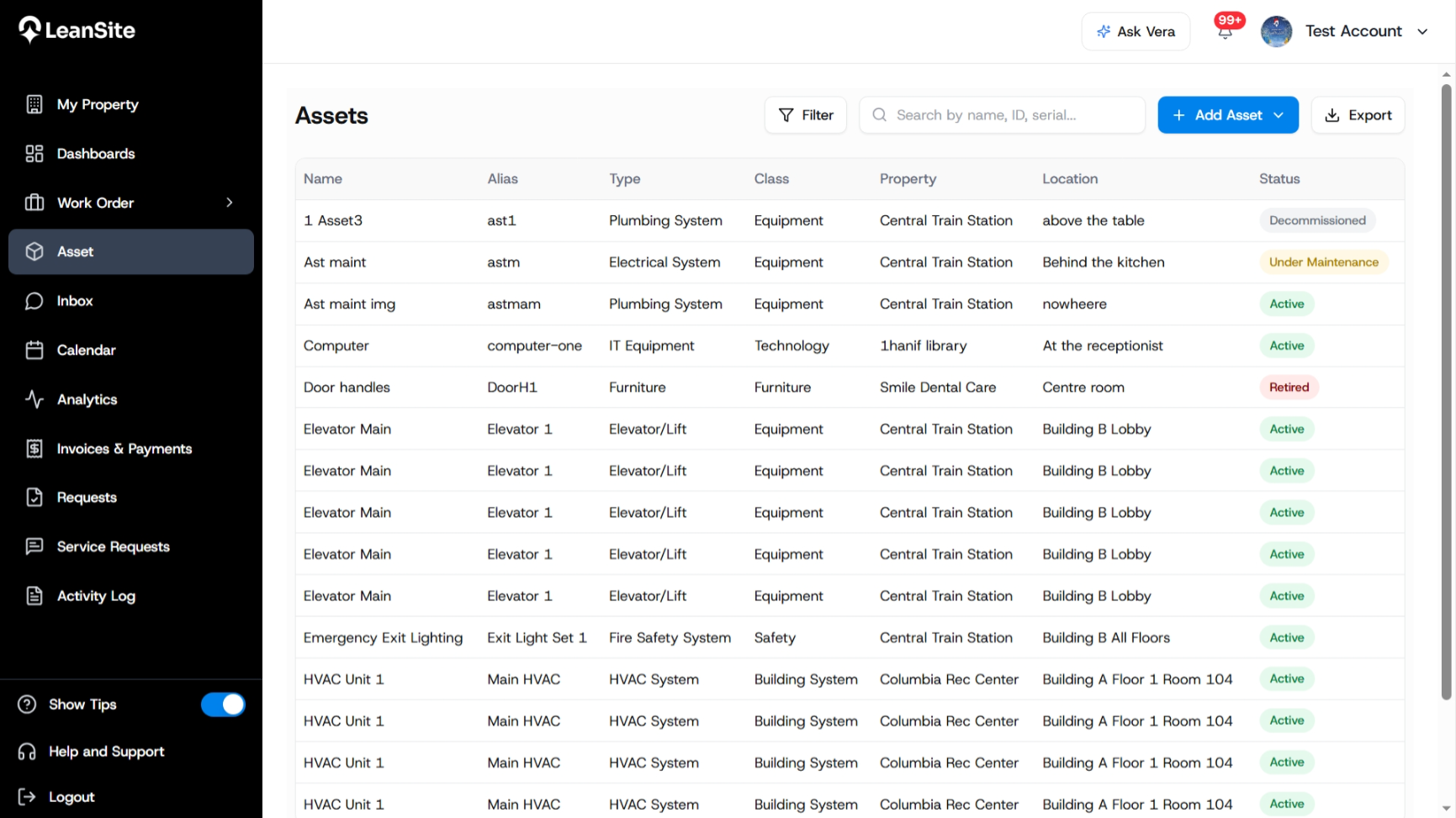
Select Asset in the main navigation. Search or filter the list before adding a record so that you do not create a duplicate. The inventory may include assets from several authorised properties.
LeanSite knowledge base screenshot
Asset inventory showing searchable asset records, property, location, status and the Add Asset action.

2. Start a new asset record

Select Add Asset. Complete the four required fields:

Field

What to enter

Asset Name

A clear operational name that people will recognise.

Type

The equipment or asset type used for classification.

Class

The applicable asset class.

Location

The property where the asset is installed or kept.

Use a consistent naming convention, especially when several properties contain similar equipment.

3. Add identification and lifecycle details

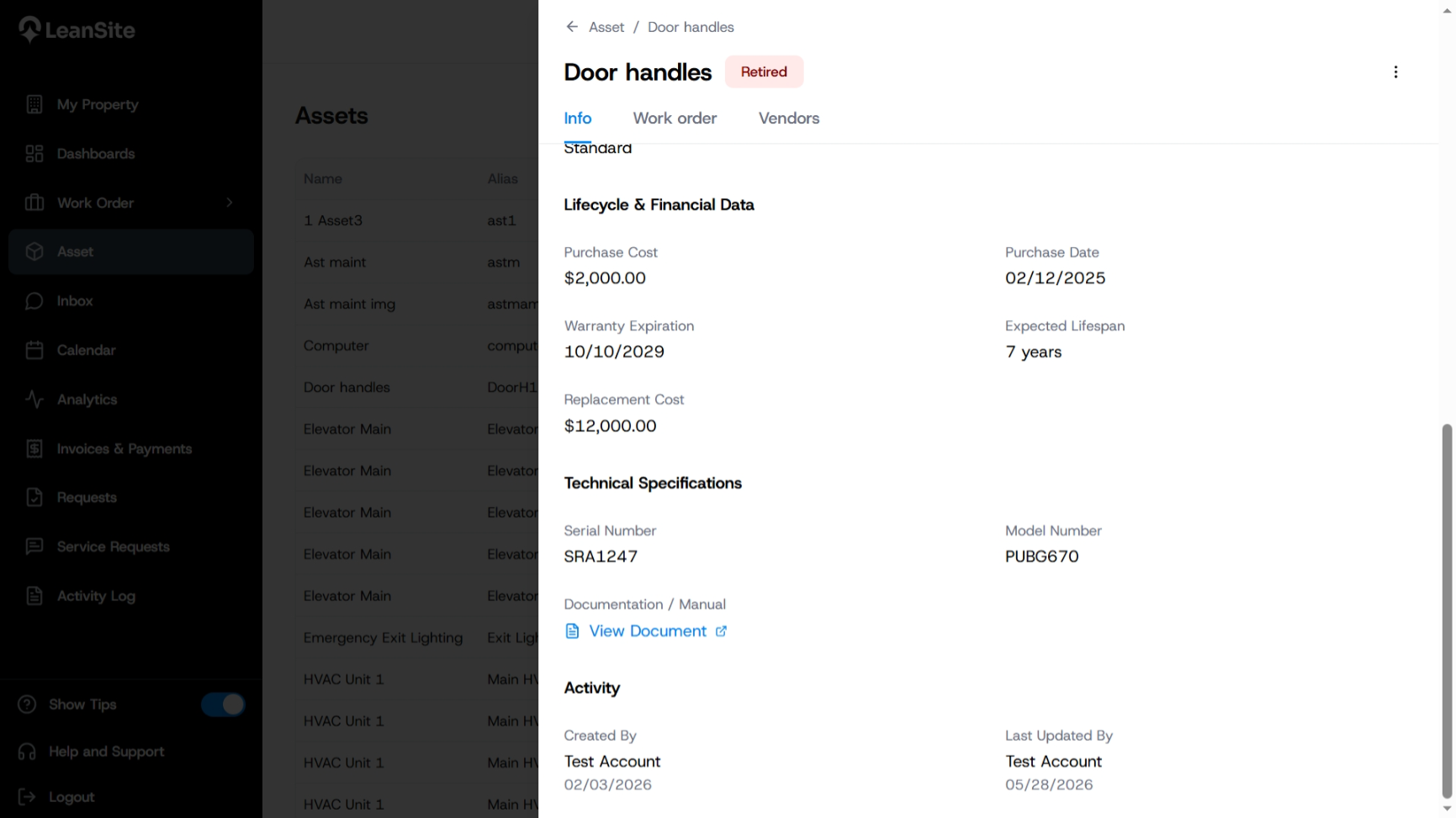
Add useful optional information, including alias, serial or model number, purchase date, purchase cost, expected life, replacement cost, warranty details, specifications, notes and documentation. These fields improve later quoting and repair-or-replace decisions when accurate source information is available.

Set the current status from the supported lifecycle states: Active, Under Maintenance, Decommissioned or Retired.
LeanSite knowledge base screenshot
Specific Asset Lifecycle & Financial Data

4. Save and verify the generated ID

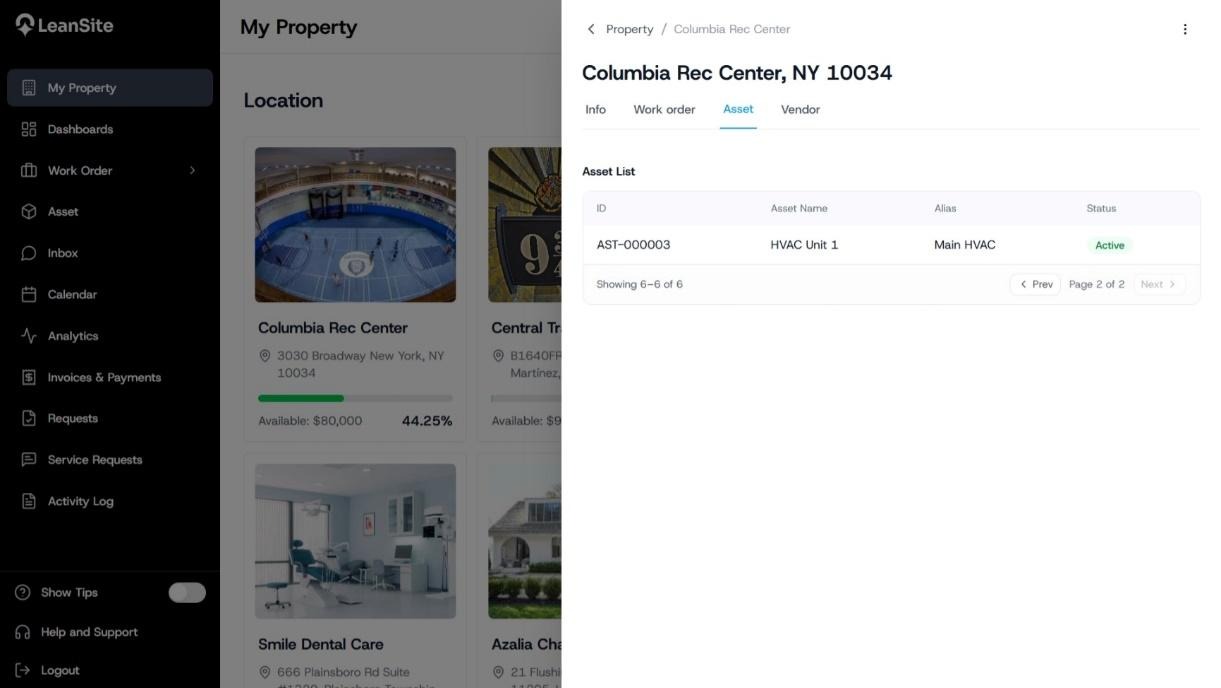
Select Create or the current save action. LeanSite generates the Asset ID. Open the saved record and confirm its property, location, status and identifying information before using it on a work order.
LeanSite knowledge base screenshot
Property Asset tab listing HVAC Unit 1 with its generated asset ID, alias and Active status.

5. Maintain the asset record

Update the status and specifications when the asset changes. Retiring an asset uses a soft-delete model: the record is removed from active use while its historical data remains available for audit and maintenance records. Asset changes are logged with the user, timestamp and changed values.

The v1 asset inventory does not include parent-child asset hierarchies, parts management, preventative-maintenance scheduling, QR scanning, depreciation or warranty alerts.

Expected result

The asset has a generated ID, belongs to the correct property and is available for supported work-order linking. Its record can accumulate maintenance and vendor history over time.

If you cannot create or edit the asset

Confirm that you can access the asset’s property and that your role permits asset changes. If a matching record already exists, update the existing record. Contact an Org Owner or LeanSite Support when the property assignment or permissions appear incorrect.

Still need a hand?

Contact your Customer Success Manager or reach our support team.

Contact Support

More from the Knowledge Base

Keep exploring guides for facility and property operations.

Work Orders
Creating a Work Order: Internal Team vs. External Service Provider

Choose Internal Team when people employed or managed inside your organisation will complete the job. Choose External Service Provider when the work must go to…

Read guide
Service Requests
Create and manage service-request templates

Build service-request templates to collect location, issue, urgency and photos from requesters. Route submissions to the FM queue for deliberate triage…

Read guide
Support
Get help and contact Leansite Support

Get help from LeanSite Support. Create a support ticket, describe your issue and track responses. Follow up on active and resolved requests through Help and…

Read guide
Leansite

Simplifying property operations for facility managers and operators. From work order scheduling to vendor management and inspections, Leansite helps you stay on top of every detail.

Ask AI about Leansite

Get an instant, sourced rundown from your assistant of choice.

Company

Mission & VisionOur TeamCareersPress & Media

Members of

IFMA — International Facility Management AssociationOHI — Advancing Outdoor Hospitality

Ready to get started?

Dallas Texas, United States.
[email protected]
(833) 546 - 7427
Request a Demo

Copyright © 2026 Leansite. All Rights Reserved

Privacy policy