


Applies to
Administrators and operations users with access to Analytics and reporting controls.
What this does and does not do
Scheduled reports distribute a scoped PDF on a chosen cadence. Trigger alerts notify the recipients you select when their condition fires. They do not prove that recipients opened a report or completed the action required by an alert.
Before you start
Decide who needs the report, the decision they need to make from it and the cadence that matches that decision. Confirm the report source, properties or locations in scope and recipients before creating a schedule. Keep recipients within the intended operational scope; a report should not become a route for sharing property information more broadly than necessary.
Create and schedule a report
- Open Analytics, select Report, then open Scheduled Reports.
- Select the action to create a scheduled report and enter a Report Name that makes the content and audience clear.
- Choose the report Source, such as Work Order Dashboard, based on the operational question the recipients need answered.
- Set the available Frequency, day, Time of Day and Timezone. Use the timezone in which the recipients operate so a Monday-morning report does not arrive at an unintended hour.
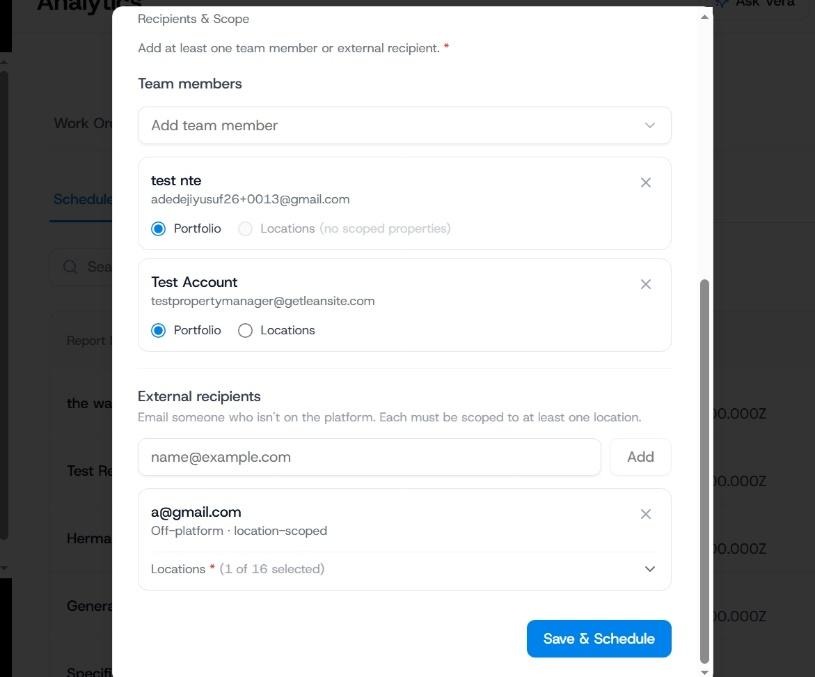
Create new scheduled report- Frame 2
- Add recipients and review the property or location scope before saving. Include only people who need the report and are appropriate recipients for the selected scope.
- Select Test Send before enabling the recurring schedule. Confirm the PDF opens, the figures and scope are correct and the email reaches the intended recipient.
- Select Save & Schedule.
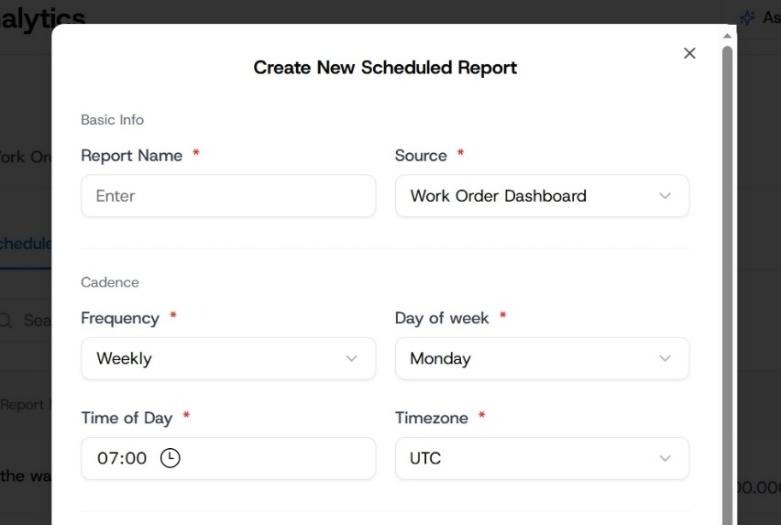
Create new scheduled report- Frame 1
Expected result
The scheduled report appears in Scheduled Reports with its source, cadence, next run and active state. The recipients receive the scoped report by PDF email at the scheduled time. A trigger alert appears in the alert list with its condition, threshold, recipients and fire-frequency cap.
Review, pause and resume delivery
Open Scheduled Reports to review the report name, source, cadence, next scheduled time and active state. Pause a report when its decision cycle stops, such as after a campaign or temporary property closure, then resume it when the report is useful again rather than creating a duplicate schedule.
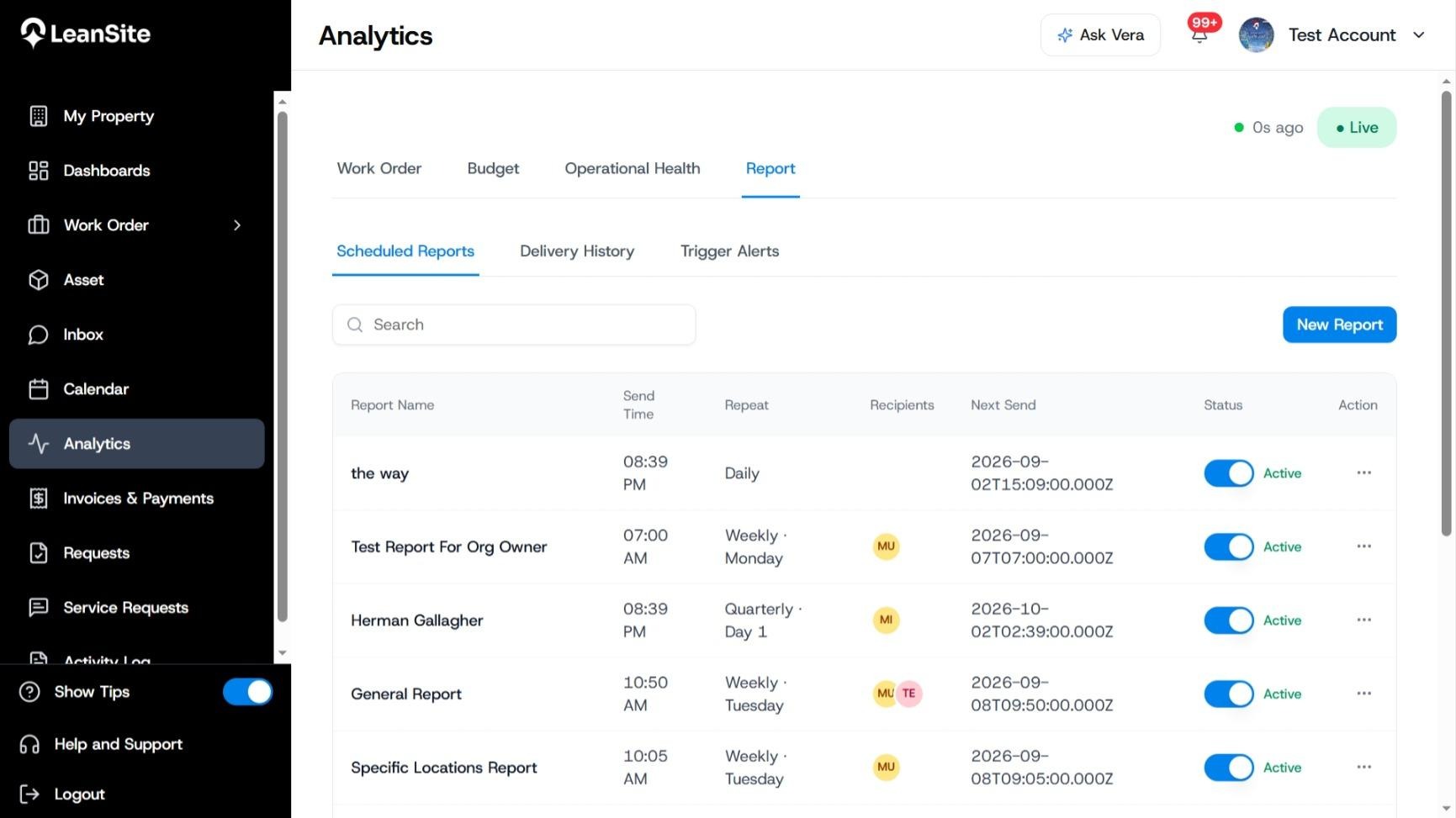
Report Analytics-Scheduled Report
Open Delivery History when a recipient says a report did not arrive. Use the send record to investigate the existing schedule before creating another one. Delivery history shows that a report was sent; it should not be treated as proof that the recipient opened or acted on the PDF.
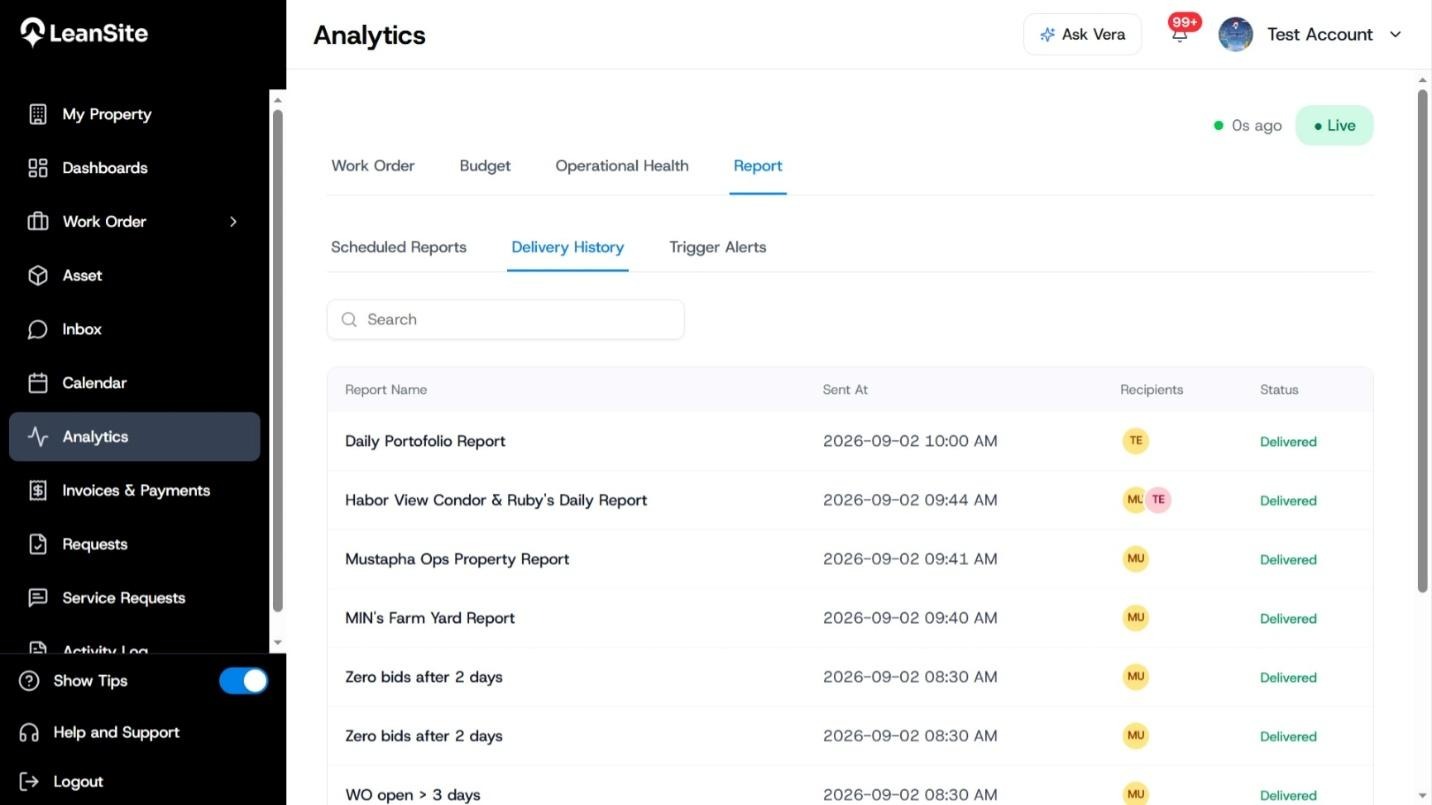
Report Analytics- Delivery History
Place after the Delivery History paragraph. Highlight report name, send time and delivery status.
Create a trigger alert
- In Analytics > Report, select Trigger Alerts, then select New Alert.
- Enter an Alert Name that tells the recipient what needs attention.
- Choose the available alert Condition and set the Threshold value. For example, a condition may identify an open work order that has exceeded a chosen number of days.
- Set the relevant priority and locations, then add the recipients responsible for acting when the condition occurs.
- Set the fire-frequency cap. This limits repeated alerts for an already-known condition and should reflect the time someone needs to take action.
- Select Save & Schedule.
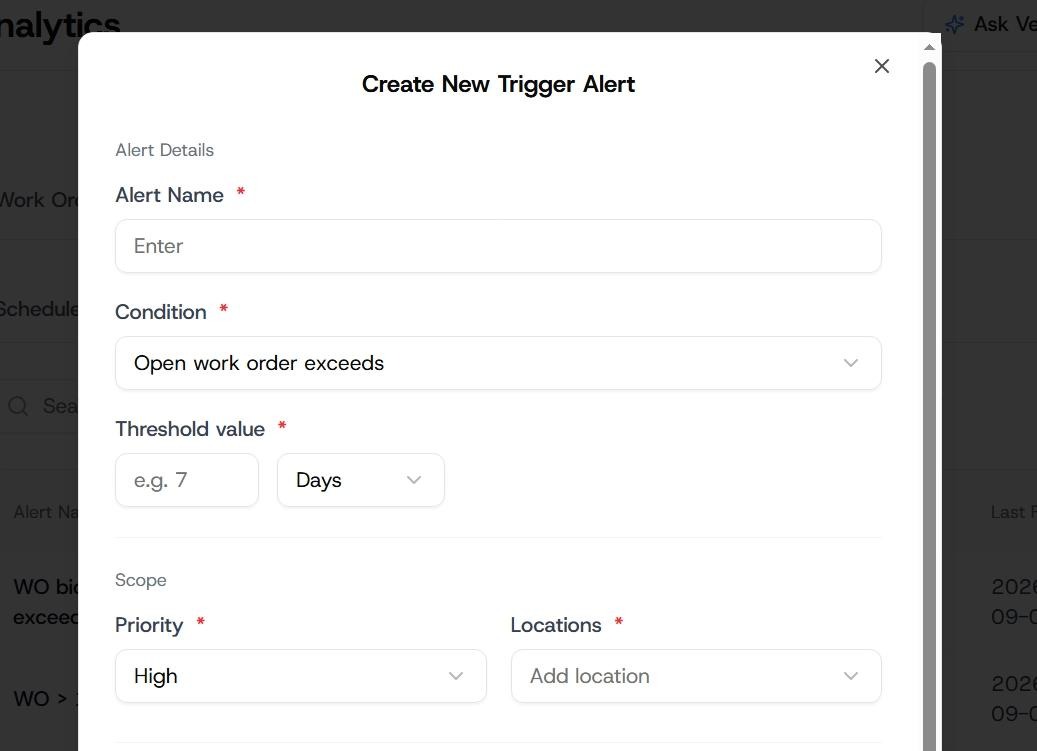
Frame 1- create new trigger alert
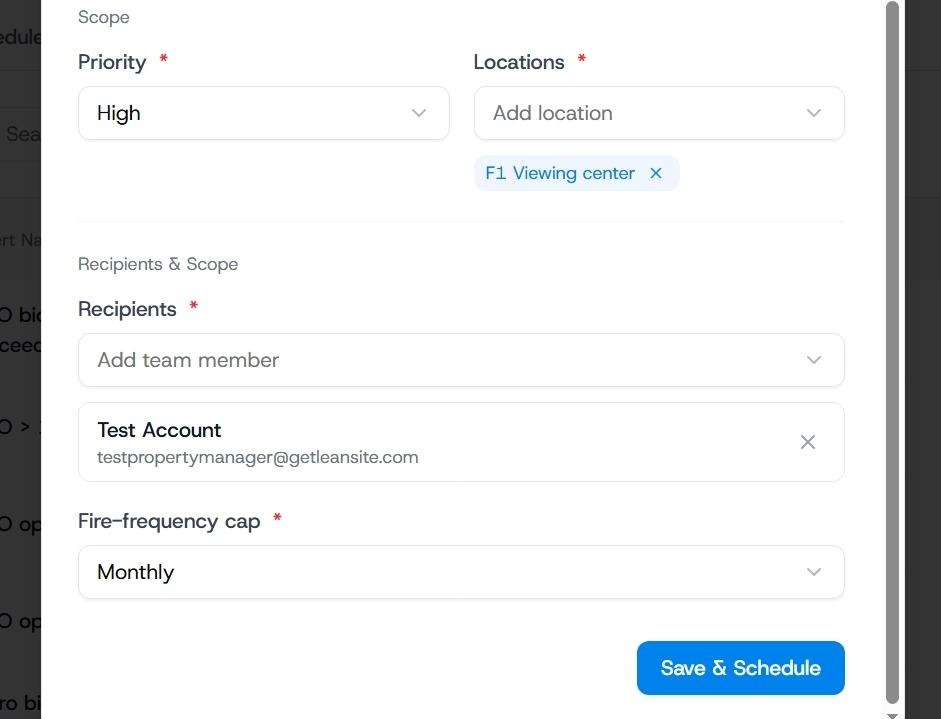
Frame 2- create new trigger alert
Keep reporting useful
Check the first PDF delivery after a new schedule begins and review the first few alert firings. Change a report when the decision rhythm changes. Tighten an alert that repeatedly gets ignored, and loosen one only after confirming that it is not hiding work that genuinely needs attention.
If delivery or alerts are not useful
- A recipient did not receive a report. Check Delivery History before creating another schedule. Confirm the recipient and location scope, then use the recorded delivery status when escalating.
- The report arrives at the wrong time. Check the schedule’s day, time and timezone, then pause and update the existing schedule rather than creating a duplicate.
- An alert fires too often. Review its condition, threshold, scope and fire-frequency cap. Change the configuration only after confirming that the alerts are not signalling genuine unresolved work.