


What this article covers
This guide explains the budget values shown in My Property, where a property’s budget is set, and how an NTE request enters the approval process. Separate guides cover adjusting a property budget, transferring budget between properties and approving an NTE increase.
Before you start
You need access to the relevant property and its financial information. Budget changes and NTE decisions may be restricted to authorised roles in your organisation.
1. Review the property portfolio
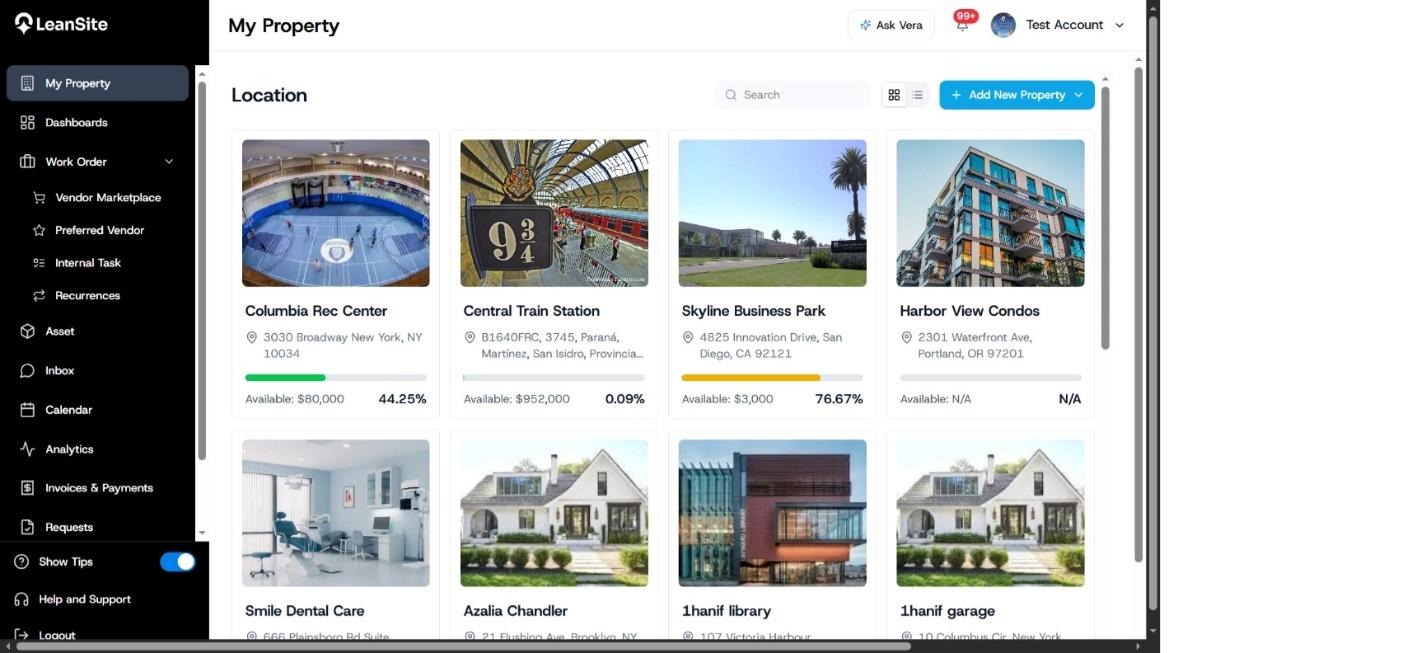
Open My Property. Each property card shows an available amount and a percentage bar so you can identify properties that need closer review. Open the property before making a financial decision, because the detailed record separates the amounts behind the summary.
2. Read the annual budget summary
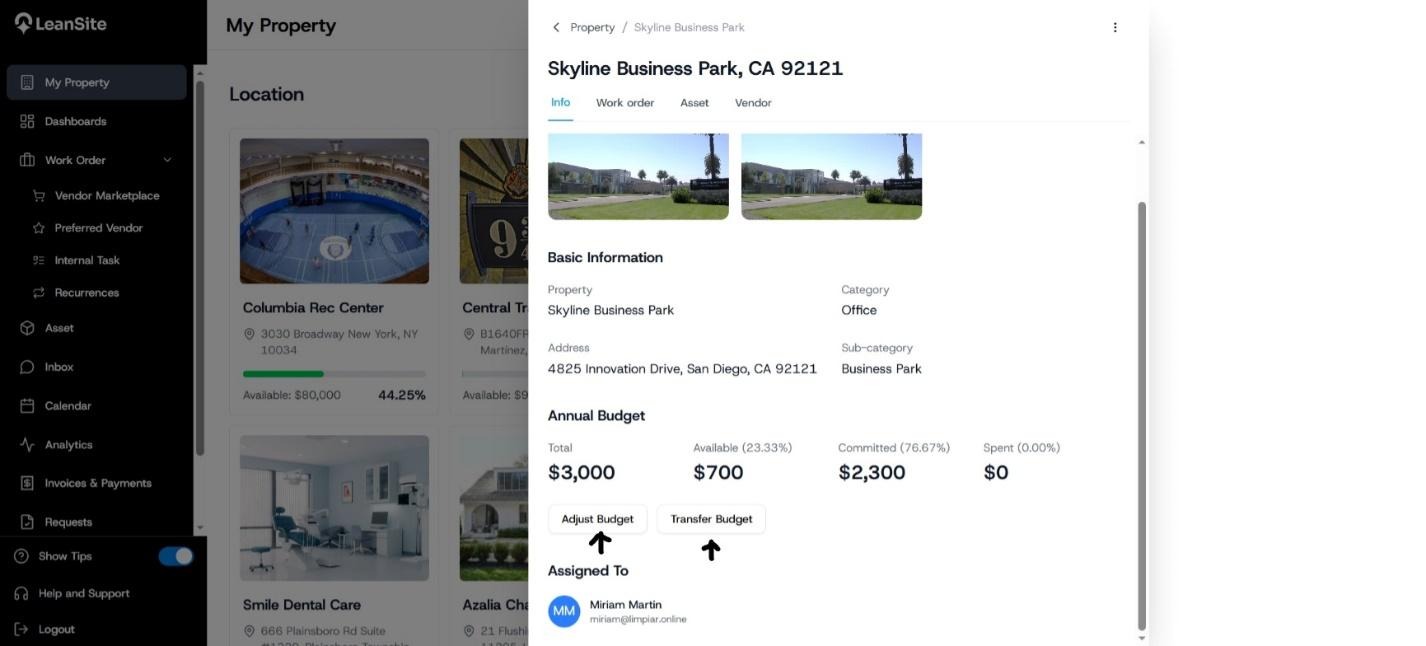
On the property record, remain on the Info tab and find Annual Budget. The summary separates four values:
|
Value |
How to use it |
|---|---|
|
Total |
The property’s current annual budget limit. |
|
Available |
The part of the budget still available for new commitments. |
|
Committed |
The amount already committed to work. |
|
Spent |
The amount recorded as spent. |
The available and committed values may also include percentages of the total. Check these values before creating externally fulfilled work, approving additional cost or transferring funds.
3. Understand the work-order NTE
An NTE is the authorised ceiling attached to a supported external work order. It gives the assignee and approver a common financial limit for the approved scope. Internal Team work orders do not use the external-vendor NTE and budget controls described here.
If the approved scope cannot be completed within the current limit, the requester raises an NTE approval request against the work order. The pending request remains visible to the approver until it is accepted or rejected. Each NTE applies to its own work order, including work orders created together in a batch.
4. Keep the two controls connected
Review the property’s available budget before approving an NTE increase. Accepting a higher NTE changes the amount authorised for the work order; a property budget adjustment changes the property’s overall limit; a transfer moves funds between property budgets. Use the action that matches the financial decision being made.
Expected result
You can identify the property’s current Total, Available, Committed and Spent values and distinguish the property budget from the NTE attached to an external work order.
If a value looks wrong
Open the underlying property or work order before taking action. Check recent budget adjustments, transfers, NTE approvals, work-order changes and payment activity in the relevant operating record. Use the Activity Log to trace recorded changes. Contact LeanSite Support when the operating record and displayed summary remain inconsistent.