Leansite
  • PLATFORM

    • Leansite Platform

      Your all-in-one hub for autonomous property operations

    • Leansite Managed Services

      Extend your team with trusted cleaning, maintenance, and vendor partners.

    • Leansite App Service

      Mobile-first tools for internal teams to streamline daily operations.

    Leansite automated operations

    Automated operations
    made simple

    LeansiteLeansiteLeansite
    Request Demo
    Leansite
  • Features
  • Industries
    • Blog & Insights
    • Case Studies
    • Podcast
    • Articles
    • Guides & Whitepapers
    • Facility Management Solutions
    • Webinars & Events
    • Learning
  • About
  • Service network
Login
Leansite

Chat with us

The support team is always
available 24/7

LeansiteChat via Whatsapp
LeansiteChat via Viber
LeansiteChat via Messager

Office Address

Dallas, Texas
United States

Phone Number

(833) 546 - 7427

Business Emails

[email protected]

Help support

Email [email protected] For help with a current product or service or refer to FAQs and developer tools.

  1. Knowledge Base
  2. Budgets and NTES
LeansiteBudgets and NTES

Transfer Funds Between Property Budgets

Use Transfer Budget to move an amount from the property you are viewing to another property. The transfer form records the destination, amount and reason, and LeanSite confirms when the transfer succeeds. Review the source property’s Available, Committed and Spent values first so the transfer does not interfere with work that has already been authorised.

Updated September 21, 20262 min read

What this article covers

This guide covers a transfer between two property budgets. It does not change the organisation’s combined allocation. Use Adjust Budget when one property’s total budget limit must be revised without drawing funds from another property.

Before you start

You need permission to manage both property budgets. Confirm the source property, destination property, transfer amount and reason for the movement.

1. Open the source property

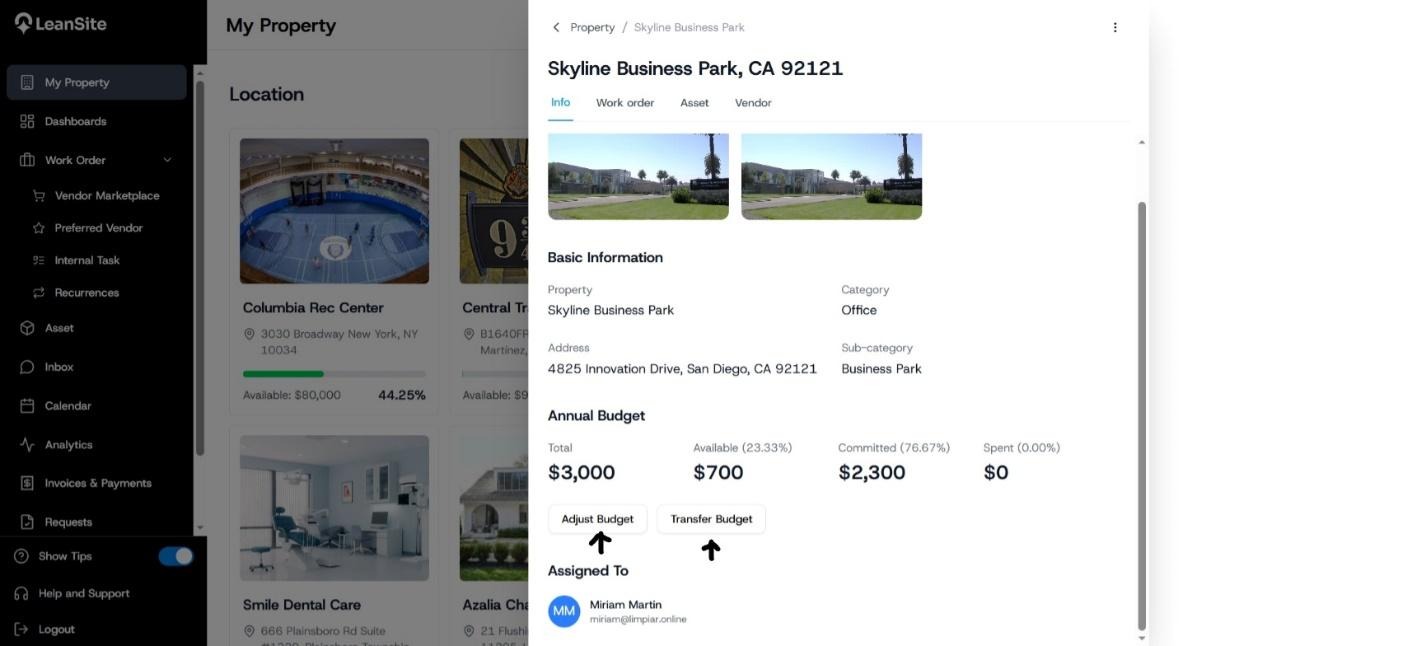
From My Property, open the property that will provide the funds. On its Info tab, review the Annual Budget summary. Pay particular attention to Available, because committed and spent amounts already relate to work or expenditure recorded against the property.
LeanSite knowledge base screenshot
Source property annual-budget summary with the Transfer Budget action.

2. Open the transfer form

Select Transfer Budget. The source property remains the property whose record you opened.

3. Choose the destination

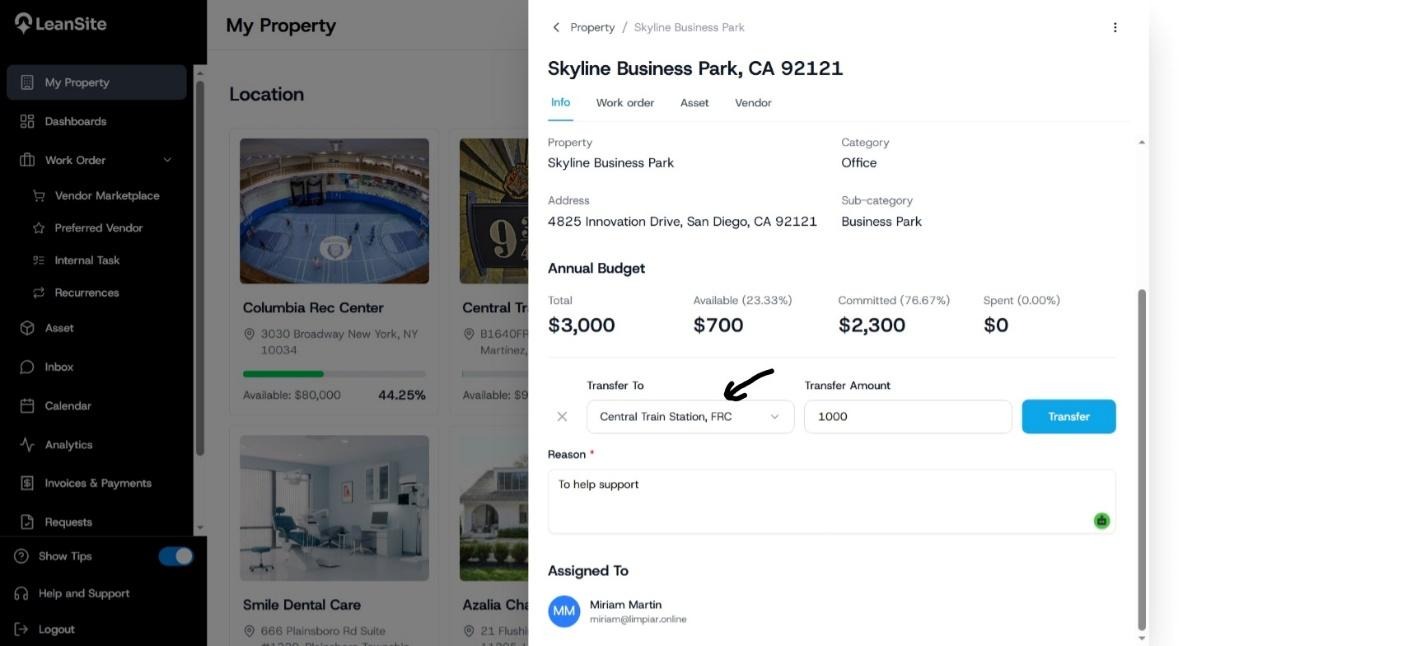
Use Transfer To to select the property that should receive the funds. Confirm the property name before entering the amount.

4. Enter the amount and reason

Enter the value in Transfer Amount. Complete the required Reason field with enough detail to explain the purpose of the transfer during a later review.
LeanSite knowledge base screenshot
Transfer Budget form showing the destination property, transfer amount, required reason and Transfer button.

5. Complete the transfer

Review the destination, amount and reason, then select Transfer. Wait for the confirmation before leaving the property record.

LeanSite knowledge base screenshot

Screenshot cue
ZIP: LeanSite (5).zip
File: Budget successfully transferred from one property to the other.jpeg
Placement: Immediately after this step.
Alt text: LeanSite confirmation stating that the budget was transferred successfully.

6. Check both properties

Review the annual-budget summary for the source property and then the destination property. Confirm that the transfer is reflected in the appropriate balances before authorising new work against either property.

Expected result

LeanSite displays Budget transferred successfully, and the source and destination property records reflect the completed movement.

If the transfer fails or is incorrect

Recheck the destination, amount and source property’s available budget. Do not repeat the transfer after a success message, because that could create a second movement. If a completed transfer used the wrong property or amount, preserve the reason and transaction details, then contact the authorised budget owner or LeanSite Support for the approved correction route.

Still need a hand?

Contact your Customer Success Manager or reach our support team.

Contact Support

More from the Knowledge Base

Keep exploring guides for facility and property operations.

General
Getting Started: Understanding the FM Portal

The LeanSite FM Portal brings property records, work orders, assets, messages, schedules, analytics, payments, approvals and support into one workspace. Start…

Read guide
Payments
Submit an Invoice and Track Payment as a Vendor

Submit an invoice only after the linked external work is eligible for invoicing and its completion evidence is recorded. Review the authorised amount, enter…

Read guide
Work Orders
Respond to Marketplace or Direct Work as a Vendor

Open each new opportunity or assignment from its LeanSite notification, confirm the property, asset, scope, deadline and commercial terms, then respond through…

Read guide
Leansite

Simplifying property operations for facility managers and operators. From work order scheduling to vendor management and inspections, Leansite helps you stay on top of every detail.

Ask AI about Leansite

Get an instant, sourced rundown from your assistant of choice.

Company

Mission & VisionOur TeamCareersPress & Media

Members of

IFMA — International Facility Management AssociationOHI — Advancing Outdoor Hospitality

Ready to get started?

Dallas Texas, United States.
[email protected]
(833) 546 - 7427
Request a Demo

Copyright © 2026 Leansite. All Rights Reserved

Privacy policy