Leansite
  • PLATFORM

    • Leansite Platform

      Your all-in-one hub for autonomous property operations

    • Leansite Managed Services

      Extend your team with trusted cleaning, maintenance, and vendor partners.

    • Leansite App Service

      Mobile-first tools for internal teams to streamline daily operations.

    Leansite automated operations

    Automated operations
    made simple

    LeansiteLeansiteLeansite
    Request Demo
    Leansite
  • Features
  • Industries
    • Blog & Insights
    • Case Studies
    • Podcast
    • Articles
    • Guides & Whitepapers
    • Facility Management Solutions
    • Webinars & Events
    • Learning
  • About
  • Service network
Login
Leansite

Chat with us

The support team is always
available 24/7

LeansiteChat via Whatsapp
LeansiteChat via Viber
LeansiteChat via Messager

Office Address

Dallas, Texas
United States

Phone Number

(833) 546 - 7427

Business Emails

[email protected]

Help support

Email [email protected] For help with a current product or service or refer to FAQs and developer tools.

  1. Knowledge Base
  2. General
LeansiteGeneral

Property Details: Using the Property Command Center

Property Details brings one property’s identity, budget, work orders, assets and vendor relationships into a single panel. Open it when you need to understand what is happening at a location before creating work or changing a financial control. The current build shows four tabs: Info, Work order, Asset and Vendor.

Updated September 21, 20263 min read

What this article covers

This guide explains how to use the confirmed Property Details tabs and their direct actions. Property creation, budget adjustment, transfers, asset creation and work-order creation remain separate tasks with their own guides.

Before you start

Confirm that your role includes access to the property. When reviewing a reported issue, have the property name or address, asset identifier or work-order reference available so you can locate the correct record quickly.

1. Open the property record

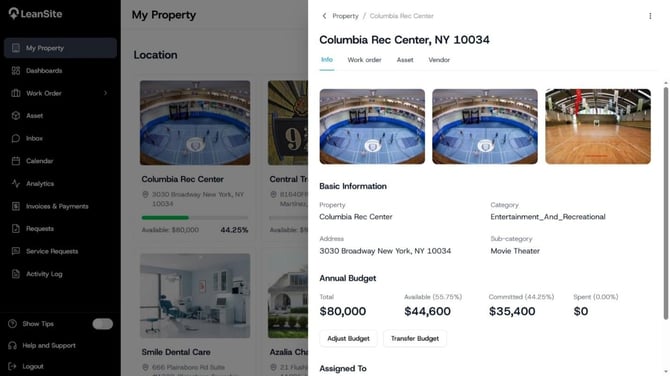
Select My Property, then open the relevant property card. Property Details opens over the portfolio view and keeps a breadcrumb back to the property list. Confirm the property name and address before using any action.
LeanSite knowledge base screenshot
Property Details for Columbia Rec Center showing the Info, Work order, Asset and Vendor tabs.

2. Use Info to establish the property context

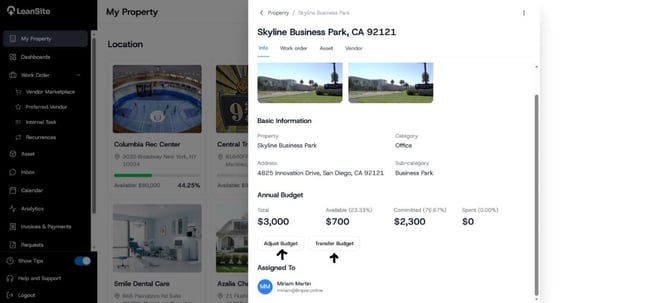
The Info tab shows property images and basic information such as property name, category, address and sub-category. Its Annual Budget area shows Total, Available, Committed and Spent. Review those values before authorising external work or changing an NTE.

The tab also provides Adjust Budget and Transfer Budget actions. Use their dedicated guides because each action has its own permission, validation and audit requirements.
LeanSite knowledge base screenshot
Property Info tab showing Total, Available, Committed and Spent, with Adjust Budget and Transfer Budget actions.

3. Review current and historical work

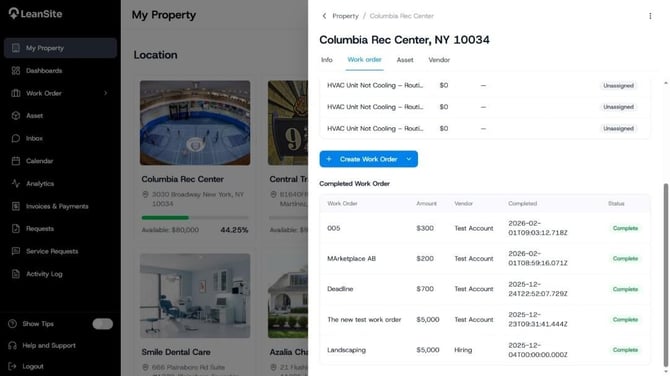
Select Work order to review work connected to the property. The supplied screen separates open work, completed work and unassigned work, and shows the related work-order records. Open a record for its full scope, status, assignee and history. Use the property-scoped creation action when new work should inherit this property.
LeanSite knowledge base screenshot
Property Work order tab showing summary counts and active records; property work-order history view.

4. Inspect the property’s assets

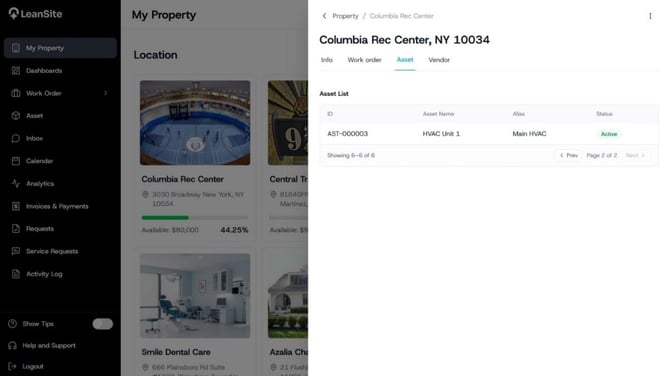
Select Asset to see assets recorded at the property. The list can show the asset name, generated ID, alias and status. Open the dedicated Asset module when you need to create or edit inventory records, then return to the property view to confirm the asset appears in the correct location.
LeanSite knowledge base screenshot
Property Asset tab listing an asset with its generated ID, alias and Active status.

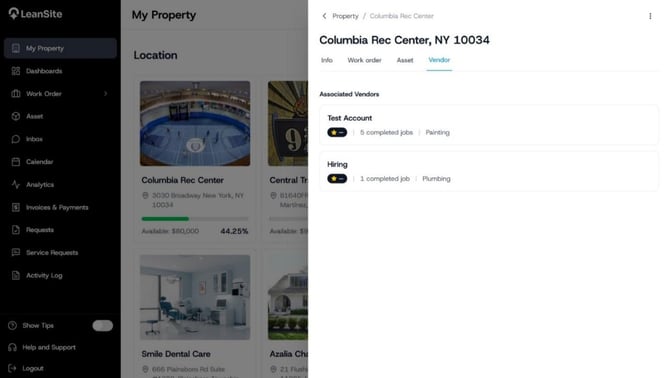
5. Review vendor relationships at the property

Select Vendor to review preferred vendors connected to the property. Use the displayed relationship and work information to establish whether a provider already serves the location. Open the vendor record or vendor-management workspace before changing eligibility or inviting a new provider.
LeanSite knowledge base screenshot
Property Vendor tab showing providers connected to the selected property.

6. Continue in the operating record

Property Details provides location context and links into deeper work. Make a work-order change in the work-order record, an asset change in the asset record and a vendor change in vendor management. This keeps the operating history attached to the correct record.

The current supplied build does not show a working Compliance tab. Do not use Property Details documentation to promise compliance functionality until it appears in the release build.

Expected result

You can open one property and review its core details, budget position, work, assets and vendor relationships before continuing into the correct operating module.

If information is missing or inconsistent

Confirm the property and your access scope. Open the underlying work order, asset, vendor or budget record and compare its current state. Use the Activity Log to trace recorded changes. Contact LeanSite Support when the source record and Property Details remain inconsistent.

Still need a hand?

Contact your Customer Success Manager or reach our support team.

Contact Support

More from the Knowledge Base

Keep exploring guides for facility and property operations.

General
Getting Started: Understanding the FM Portal

The LeanSite FM Portal brings property records, work orders, assets, messages, schedules, analytics, payments, approvals and support into one workspace. Start…

Read guide
Payments
Submit an Invoice and Track Payment as a Vendor

Submit an invoice only after the linked external work is eligible for invoicing and its completion evidence is recorded. Review the authorised amount, enter…

Read guide
Work Orders
Respond to Marketplace or Direct Work as a Vendor

Open each new opportunity or assignment from its LeanSite notification, confirm the property, asset, scope, deadline and commercial terms, then respond through…

Read guide
Leansite

Simplifying property operations for facility managers and operators. From work order scheduling to vendor management and inspections, Leansite helps you stay on top of every detail.

Ask AI about Leansite

Get an instant, sourced rundown from your assistant of choice.

Company

Mission & VisionOur TeamCareersPress & Media

Members of

IFMA — International Facility Management AssociationOHI — Advancing Outdoor Hospitality

Ready to get started?

Dallas Texas, United States.
[email protected]
(833) 546 - 7427
Request a Demo

Copyright © 2026 Leansite. All Rights Reserved

Privacy policy