Leansite
  • PLATFORM

    • Leansite Platform

      Your all-in-one hub for autonomous property operations

    • Leansite Managed Services

      Extend your team with trusted cleaning, maintenance, and vendor partners.

    • Leansite App Service

      Mobile-first tools for internal teams to streamline daily operations.

    Leansite automated operations

    Automated operations
    made simple

    LeansiteLeansiteLeansite
    Request Demo
    Leansite
  • Features
  • Industries
    • Blog & Insights
    • Case Studies
    • Podcast
    • Articles
    • Guides & Whitepapers
    • Webinars & Events
    • Learning
  • About
  • Service network
Login
Leansite

Chat with us

The support team is always
available 24/7

LeansiteChat via Whatsapp
LeansiteChat via Viber
LeansiteChat via Messager

Office Address

Dallas, Texas
United States

Phone Number

(833) 546 - 7427

Business Emails

[email protected]

Help support

Email [email protected] For help with a current product or service or refer to FAQs and developer tools.

  1. Knowledge Base
  2. Service Requests
LeansiteService Requests

Manage a Service Request from Submission to Resolution

Every submitted service request requires a deliberate Facilities Manager decision. In the current FM Portal, submitted requests appear under Service Requests > Findings. Review the issue and its property, area or asset context, then create work, request clarification, merge a duplicate or dismiss the request. LeanSite records the decision so the request remains traceable.

Updated September 9, 20263 min read

What this article covers

This guide starts when a requester has submitted a form and ends when the request has been dispositioned. It does not cover building a form template or deploying its QR code.

Before you start

You need access to the property’s service requests. For a request that will become work, be ready to choose the trade, assignment route, priority, NTE where applicable and any checklist needed for completion.

1. Open the intake queue

Open Service Requests, select Findings, then open Guest Findings for requests submitted through a public form. Use Filter or Search to narrow the queue. Cards show the request state, urgency, description, location and any available photo count.

The current interface uses the word Finding for these intake records. A Converted record has already been turned into work; open an unresolved record for review.
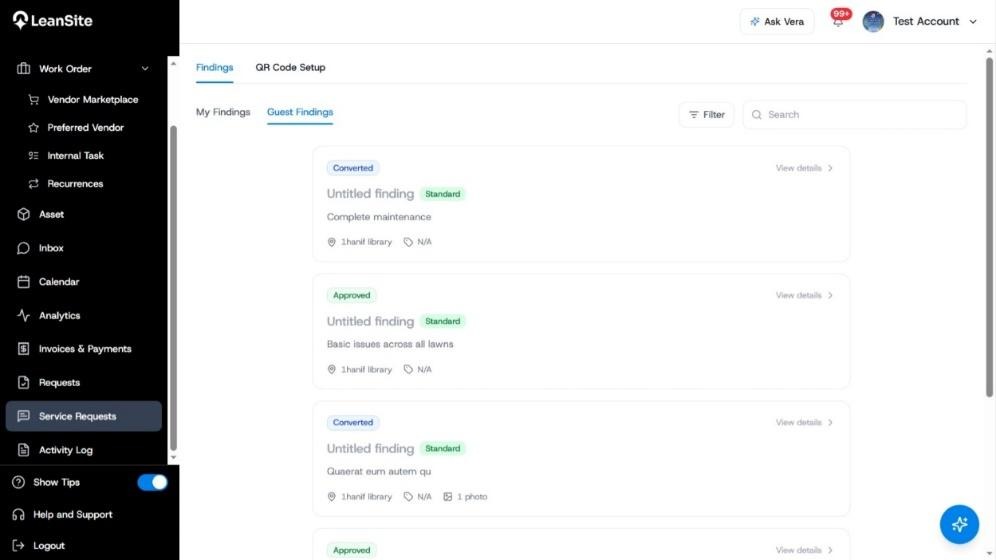
Guest Findings queue showing service-request cards, Standard urgency, Converted and Approved states, search and filter controls.

2. Review the request details

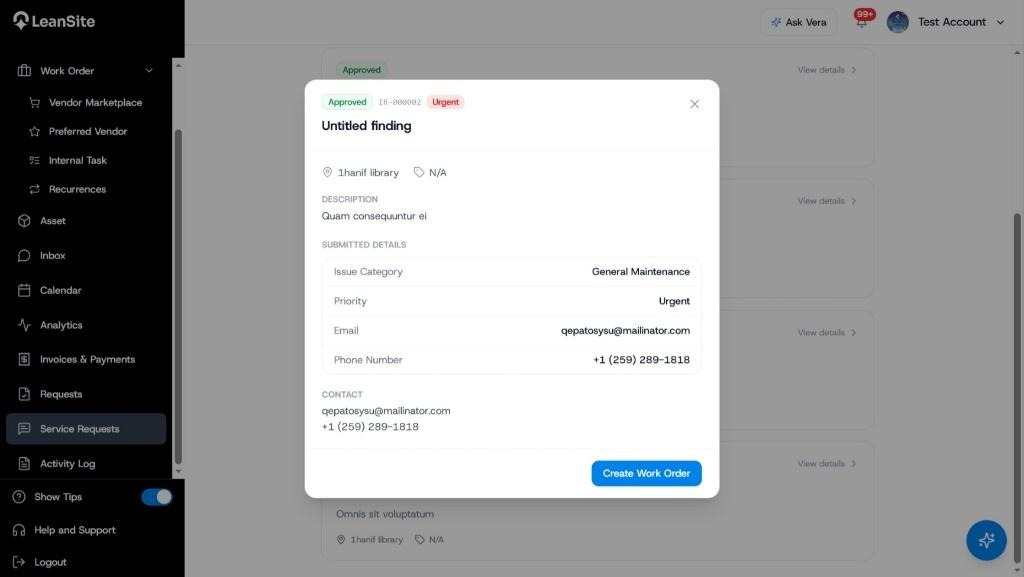
Select View details. Confirm the property or location, specific area or linked asset, description, issue category, urgency and supporting photos. If the requester provided contact information, use it only for operational follow-up connected to this issue.

LeanSite supports Standard and Urgent requester priorities in this flow. Treat the label as an intake signal and apply your organisation’s response procedure when deciding what happens next.
LeanSite knowledge base screenshot
Approved urgent finding showing its reference, property, description, issue category and requester contact details.

3. Choose the correct disposition

Use the action that matches the request:

Use it when

Result

Create Work Order

The issue requires new work.

Request context is carried into a new work-order draft.

Request More Information

A safe assignment decision needs clarification.

LeanSite contacts the requester when usable contact information was supplied.

Merge with Existing

The issue duplicates a request or active work order already being handled.

The duplicate is linked to the existing record, avoiding double work.

Dismiss

The request does not warrant work.

The request is closed with a recorded reason.

Each decision records the timestamp, FM identity and rationale. LeanSite v1 does not automatically route an intake request to a team or vendor.

4. Create work when action is required

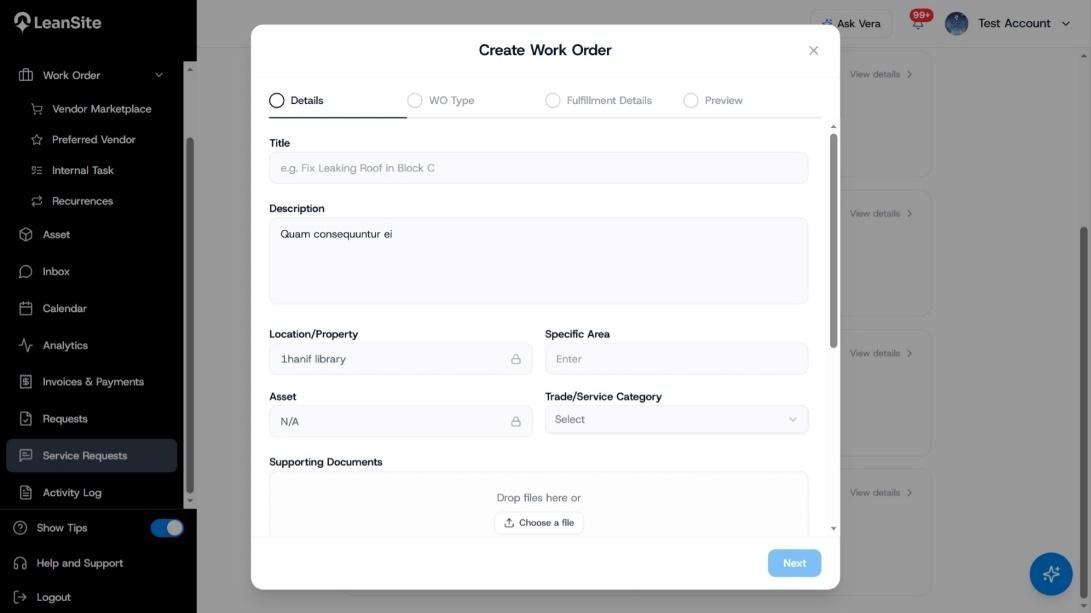
Select Create Work Order. Review the carried-over description, property and asset. Complete the title, specific area, trade or service category and supporting documents, then continue through WO Type, Fulfillment Details and Preview. Add the assignment route, NTE for supported external work and any checklist required by the job.
LeanSite knowledge base screenshot
Create Work Order dialog opened from a finding, with the property and asset carried over and the work-order stages visible.

5. Confirm the recorded outcome

Return to the request and verify its new state and linked record. If contact details were supplied, the requester receives an update after disposition. Open the new work order and confirm that its property, asset, description and evidence match the original request.

Expected result

The request has one recorded outcome: new work, a clarification request, a link to existing work or dismissal. Any new work order retains the request context and can be followed through assignment and completion.

If the wrong decision was made

Do not create a second work order to hide the mistake. Open the request, its linked work order and the Activity Log to establish what was recorded. Correct the affected operating record if your permissions allow it, or contact an authorised manager or LeanSite Support with the request reference and intended outcome.

Still need a hand?

Contact your Customer Success Manager or reach our support team.

Contact Support

More from the Knowledge Base

Keep exploring guides for facility and property operations.

General
Create an Asset

Create an asset to give a property-level item its own ID, status, specifications and work history. Every asset belongs to one property. After it is saved, the…

Read guide
Work Orders
Creating a Work Order: Internal Team vs. External Service Provider

Choose Internal Team when people employed or managed inside your organisation will complete the job. Choose External Service Provider when the work must go to…

Read guide
Service Requests
Create and manage service-request templates

Build service-request templates to collect location, issue, urgency and photos from requesters. Route submissions to the FM queue for deliberate triage…

Read guide
Leansite

Simplifying property operations for facility managers and operators. From work order scheduling to vendor management and inspections, Leansite helps you stay on top of every detail.

Ask AI about Leansite

Get an instant, sourced rundown from your assistant of choice.

Company

Mission & VisionOur TeamCareersPress & Media

Members of

IFMA — International Facility Management AssociationOHI — Advancing Outdoor Hospitality

Ready to get started?

Dallas Texas, United States.
[email protected]
(833) 546 - 7427
Request a Demo

Copyright © 2026 Leansite. All Rights Reserved

Privacy policy