


What this article covers
This guide covers inviting an FM Portal organisation member and monitoring the invitation. Internal service-team membership and Service Provider vendor invitations use separate workflows.
Before you start
You need permission to manage organisation members. Confirm the person’s email address, intended role and property access before sending the invitation. Give each person only the access required for their work.
1. Open the organisation settings
Open Settings, select Organization, then remain on Team Member. The member list shows each person’s assigned properties, role, NTE amount where applicable and status.
Use Role Permission to review the organisation’s current role definitions before inviting someone whose access requirements are unclear.
2. Start the invitation
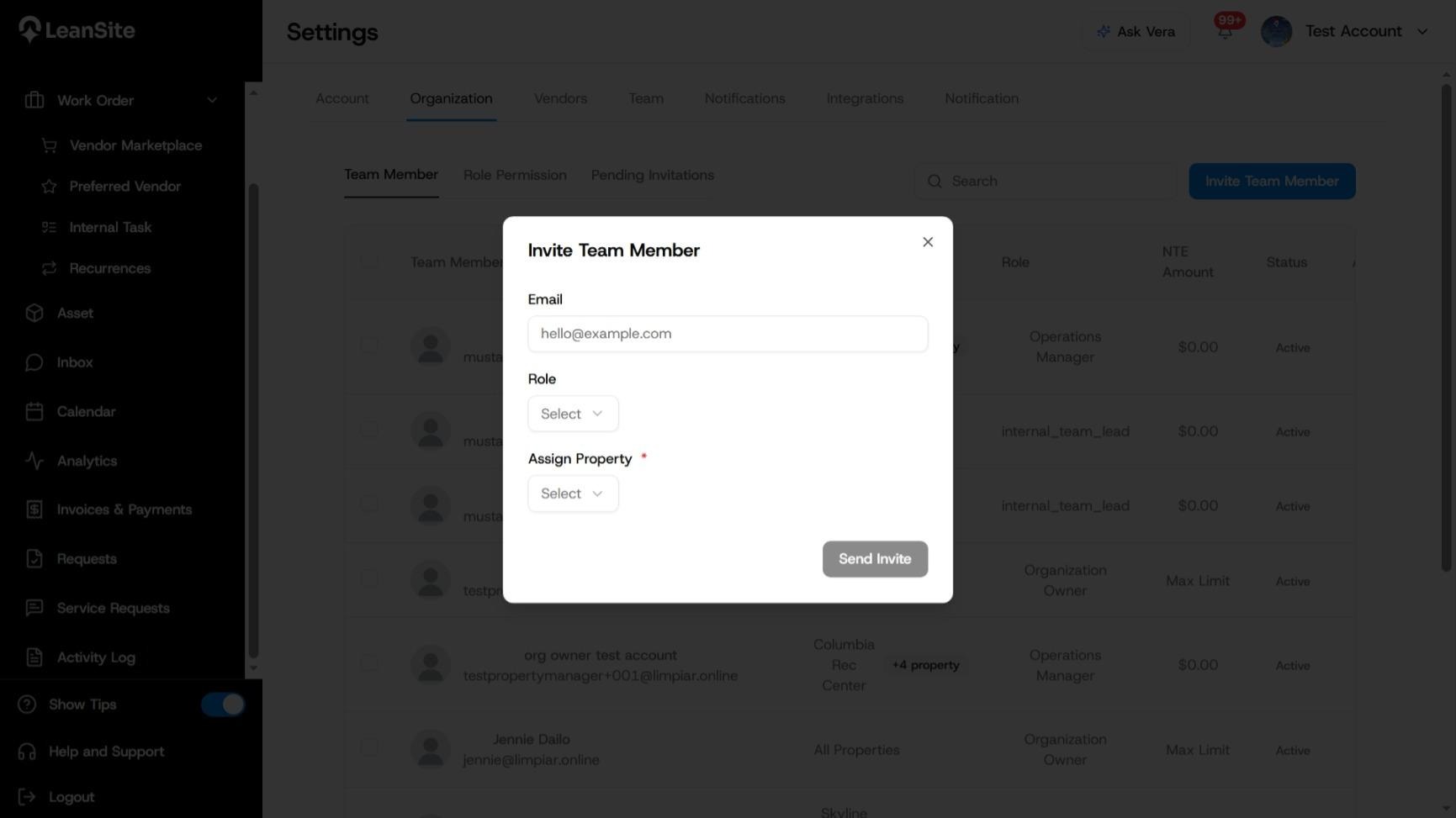
Select Invite Team Member. Enter the person’s Email, then choose a Role.
The current member list includes roles such as Organisation Owner, Operations Manager and Internal Team Lead. Use the role names available in your organisation and match the selection to the person’s actual responsibility.
3. Assign the property scope
Use Assign Property to select the properties the person should be able to access. This field is required in the invitation window. Check the scope carefully because it controls which property records the invited member can work with.
4. Send the invitation
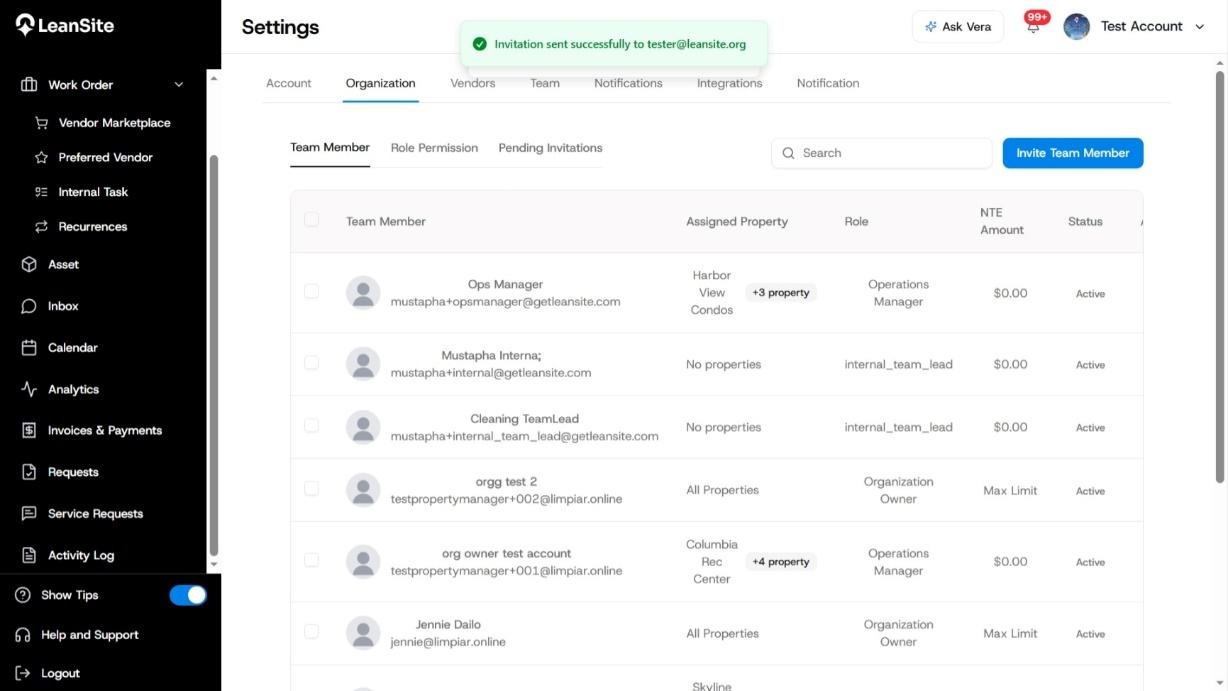
Review the email, role and property assignment, then select Send Invite. LeanSite confirms that the invitation was sent to the entered email address.
5. Check the invitation status
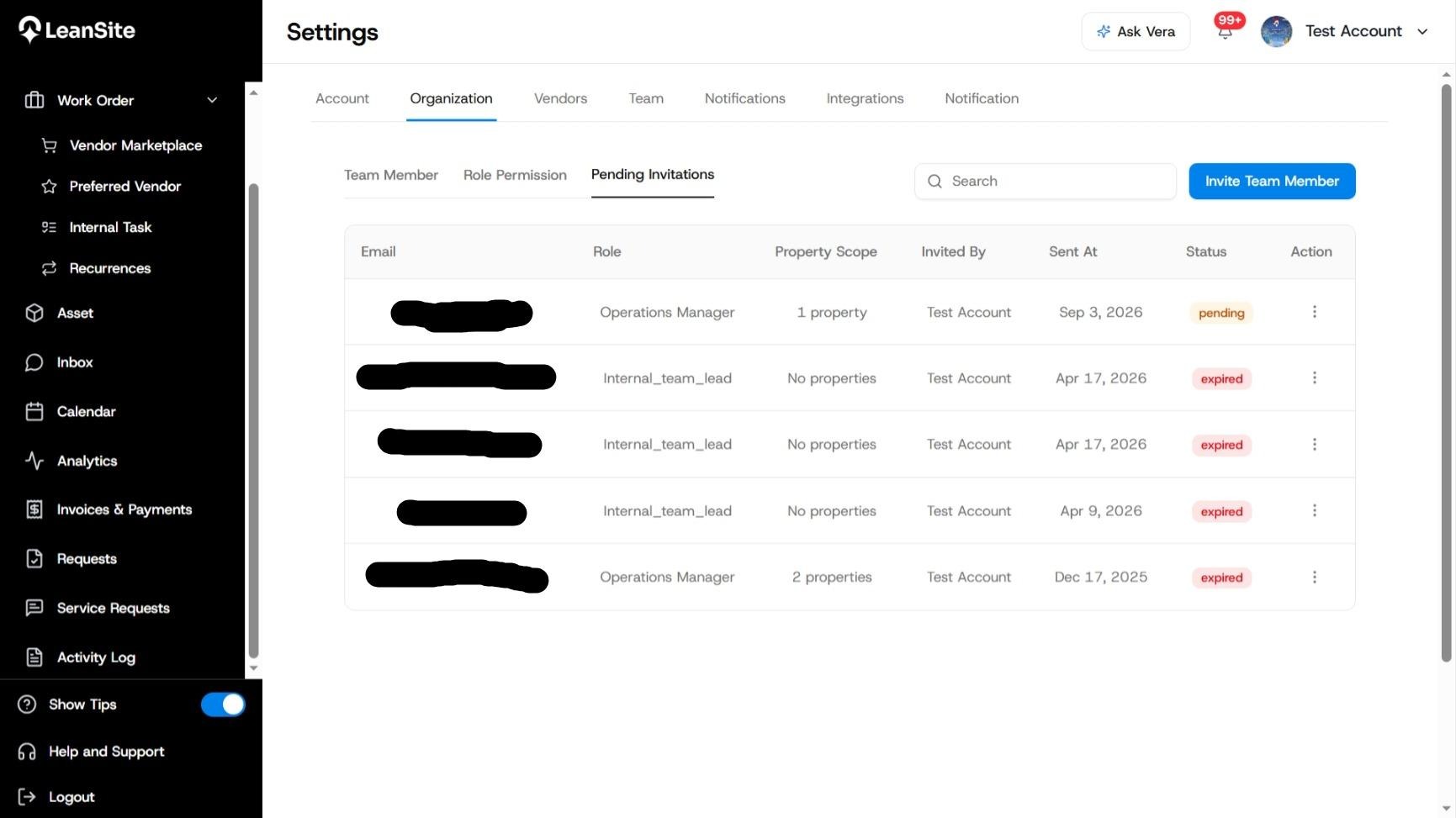
Open Pending Invitations. Each invitation shows its email address, role, property scope, sender, sent date and status. A new invitation can remain pending until the recipient completes it. Older invitations can show expired.
Use the action menu beside an invitation when you need to apply an available follow-up action.
Expected result
LeanSite records the invitation with the selected role and property scope. Once the recipient completes the invitation, the person appears in the Team Member list with their current status.
If the invitation is pending or expired
Confirm that the email address is correct and that the recipient has checked the intended inbox. Use the invitation’s action menu for the follow-up actions available in the current account. Create a corrected invitation when the email, role or property scope was wrong, and remove or revoke the obsolete invitation through the approved member-management process.