Leansite
  • PLATFORM

    • Leansite Platform

      Your all-in-one hub for autonomous property operations

    • Leansite Managed Services

      Extend your team with trusted cleaning, maintenance, and vendor partners.

    • Leansite App Service

      Mobile-first tools for internal teams to streamline daily operations.

    Leansite automated operations

    Automated operations
    made simple

    LeansiteLeansiteLeansite
    Request Demo
    Leansite
  • Features
  • Industries
    • Blog & Insights
    • Case Studies
    • Podcast
    • Articles
    • Guides & Whitepapers
    • Facility Management Solutions
    • Webinars & Events
    • Learning
  • About
  • Service network
Login
Leansite

Chat with us

The support team is always
available 24/7

LeansiteChat via Whatsapp
LeansiteChat via Viber
LeansiteChat via Messager

Office Address

Dallas, Texas
United States

Phone Number

(833) 546 - 7427

Business Emails

[email protected]

Help support

Email [email protected] For help with a current product or service or refer to FAQs and developer tools.

  1. Knowledge Base
  2. General
LeansiteGeneral

Create a Dashboard

Create a dashboard when you need a saved view of selected operational measures. Start with a blank canvas or a LeanSite template, choose the widgets that answer your reporting question, set the time and refresh controls, then choose who can find the dashboard. Access to a shared dashboard continues to respect each viewer’s underlying data permissions.

Updated September 21, 20262 min read

 What this article covers

This guide covers creating, arranging and sharing one dashboard in the FM Portal. It does not define the calculations behind each widget; use the relevant analytics article when a measure needs interpretation.

Before you start

Decide what the dashboard should help its readers monitor. Keep the first version focused on one operational question, such as open work, completion performance or vendor performance. You also need permission to create and share dashboards.

1. Start a dashboard

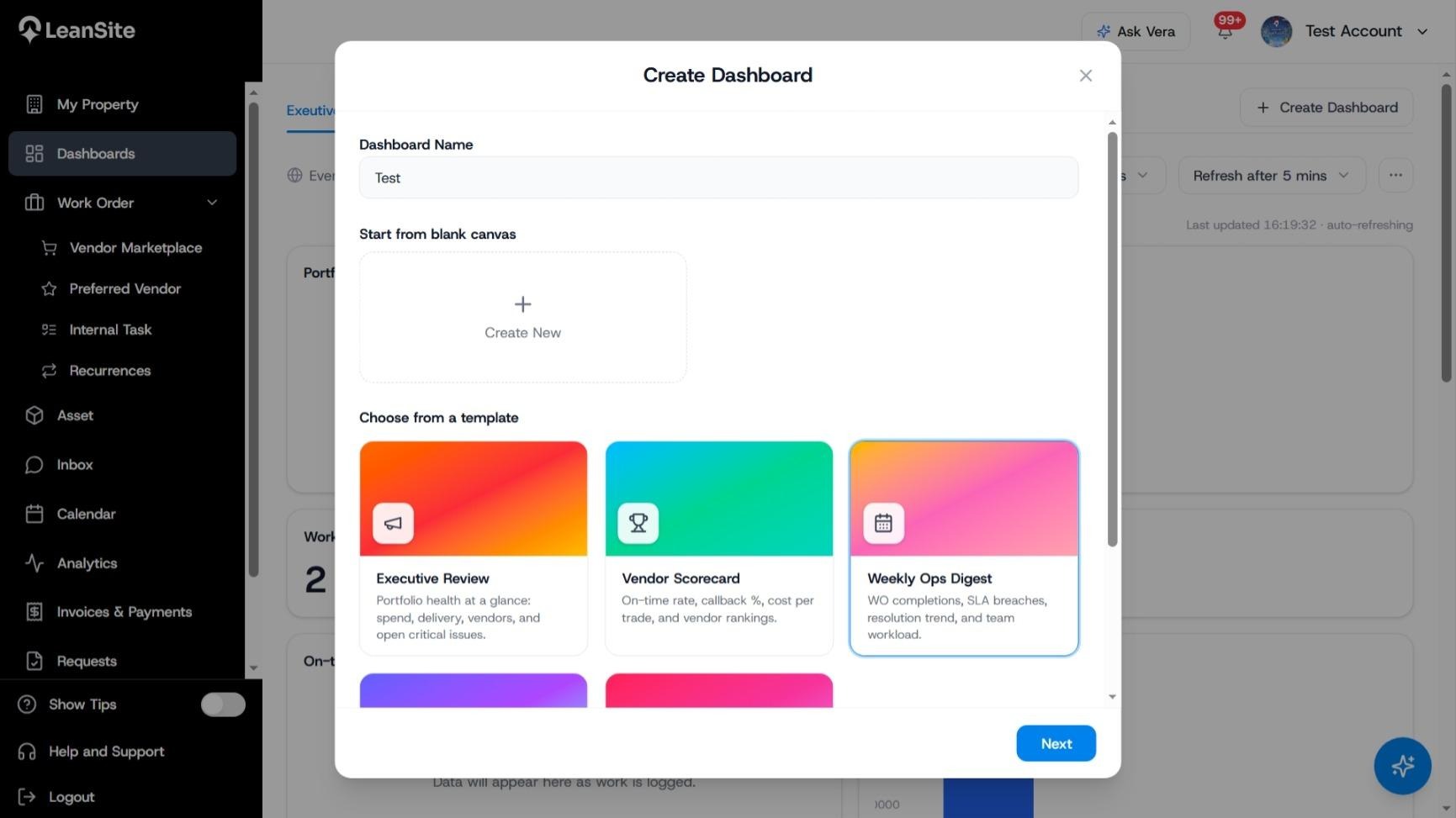
Select Dashboards in the FM Portal, then select Create Dashboard. Enter a clear Dashboard Name.

You can select Create New under Start from blank canvas, or choose a prepared template. The visible templates include:

  • Executive Review, for portfolio health, spend, delivery, vendors and open critical issues;
  • Vendor Scorecard, for vendor rates, cost and rankings;
  • Weekly Ops Digest, for work-order completions, SLA breaches, resolution trends and team workload.

Choose the starting point that is closest to the question you want to answer, then select Next.
LeanSite knowledge base screenshot
Create Dashboard window showing the dashboard name, blank-canvas option and available templates.

2. Choose the widgets

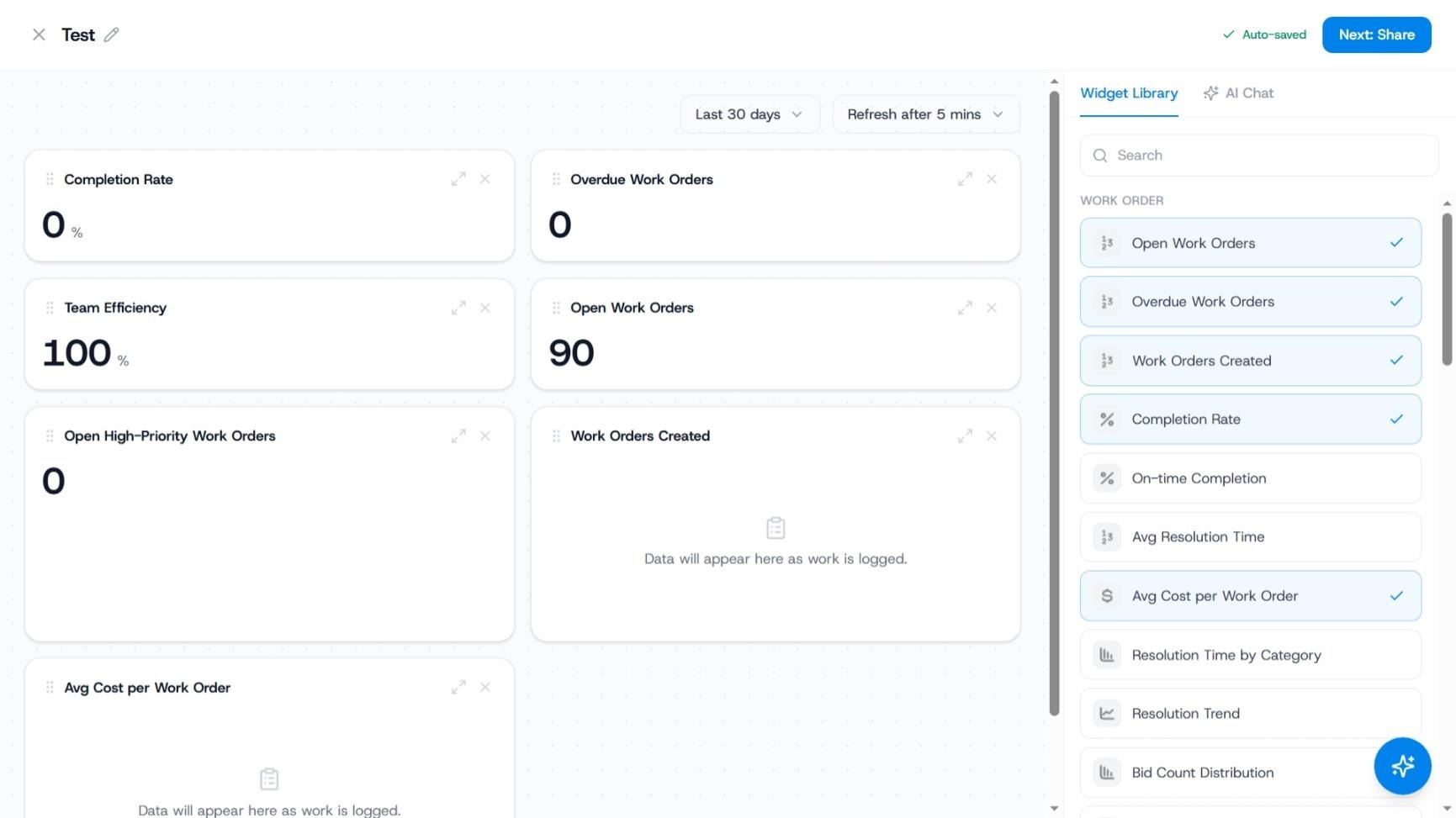
Use the Widget Library to find and select the measures required for the dashboard. The visible work-order widgets include Open Work Orders, Overdue Work Orders, Work Orders Created, Completion Rate, On-time Completion, Average Resolution Time, Average Cost per Work Order, Resolution Time by Category, Resolution Trend and Bid Count Distribution.

Selected widgets show a tick and appear on the canvas. Remove measures that do not help the dashboard’s intended reader.
LeanSite knowledge base screenshot
Dashboard builder with selected work-order widgets and the Widget Library open.

3. Arrange the dashboard

Move the selected cards into a useful reading order. Place the most important headline measures first and keep related measures together. LeanSite shows Auto-saved while you work.

Use the time-range and refresh controls shown above the canvas to set the view required for this dashboard. The selected range and refresh interval affect how readers interpret the figures, so keep them visible when reviewing the result.

4. Continue to sharing

When the content is ready, select Next: Share.

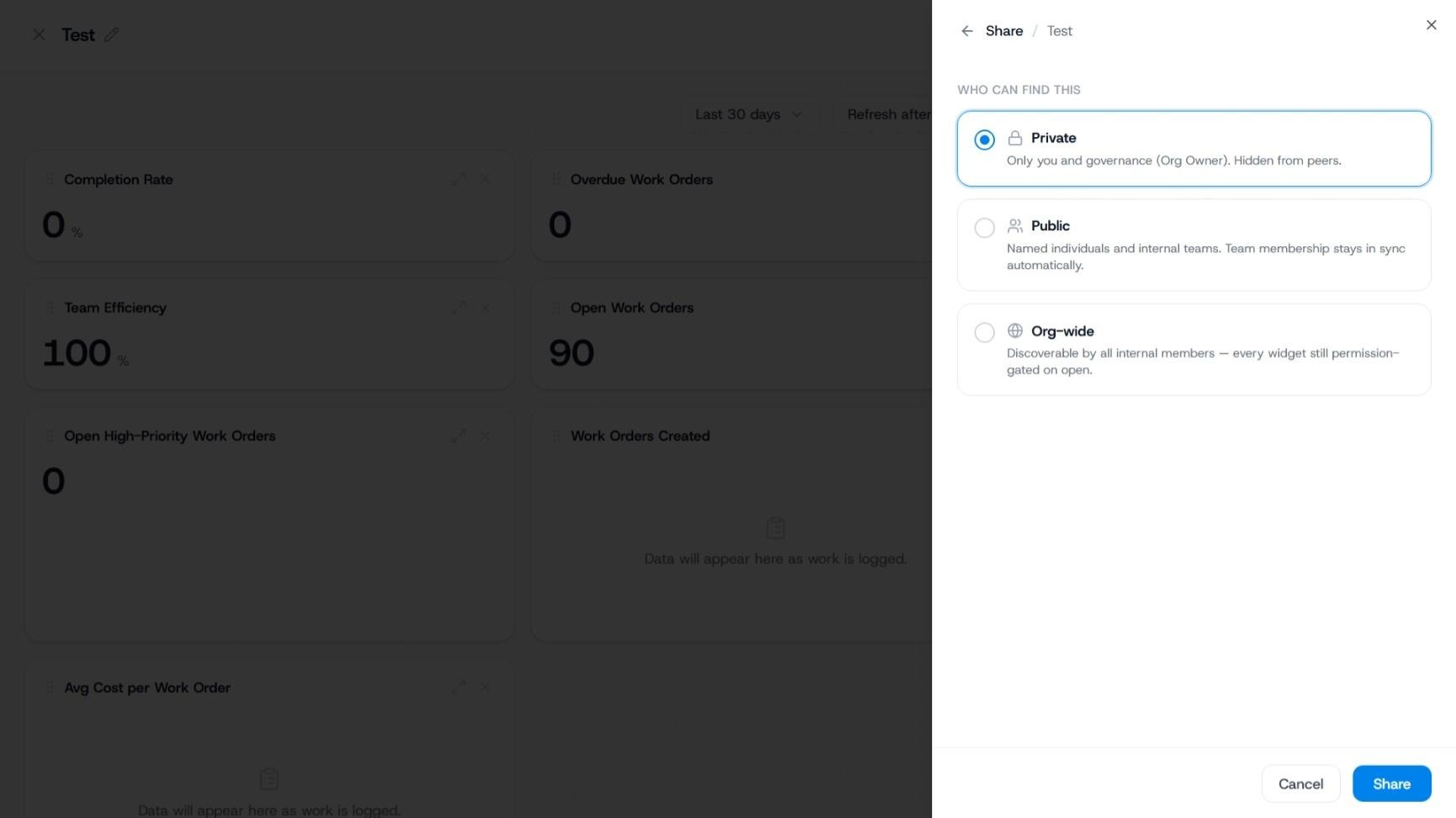
Choose who can find the dashboard:

Sharing option

Who can find it

Private

You and governance, including the Organisation Owner. It is hidden from peers.

Public

Named individuals and internal teams. Team membership remains in sync.

Org-wide

All internal members can discover it. Each widget remains permission-gated when opened.

Sharing controls discovery of the dashboard. It does not widen a person’s access to properties or data they are not permitted to view.
LeanSite knowledge base screenshot
Dashboard sharing panel with Private, Public and Org-wide options and their visibility descriptions.

5. Create and share the dashboard

Review the sharing choice and select Share. LeanSite returns to the Dashboards page and displays Dashboard created and shared.
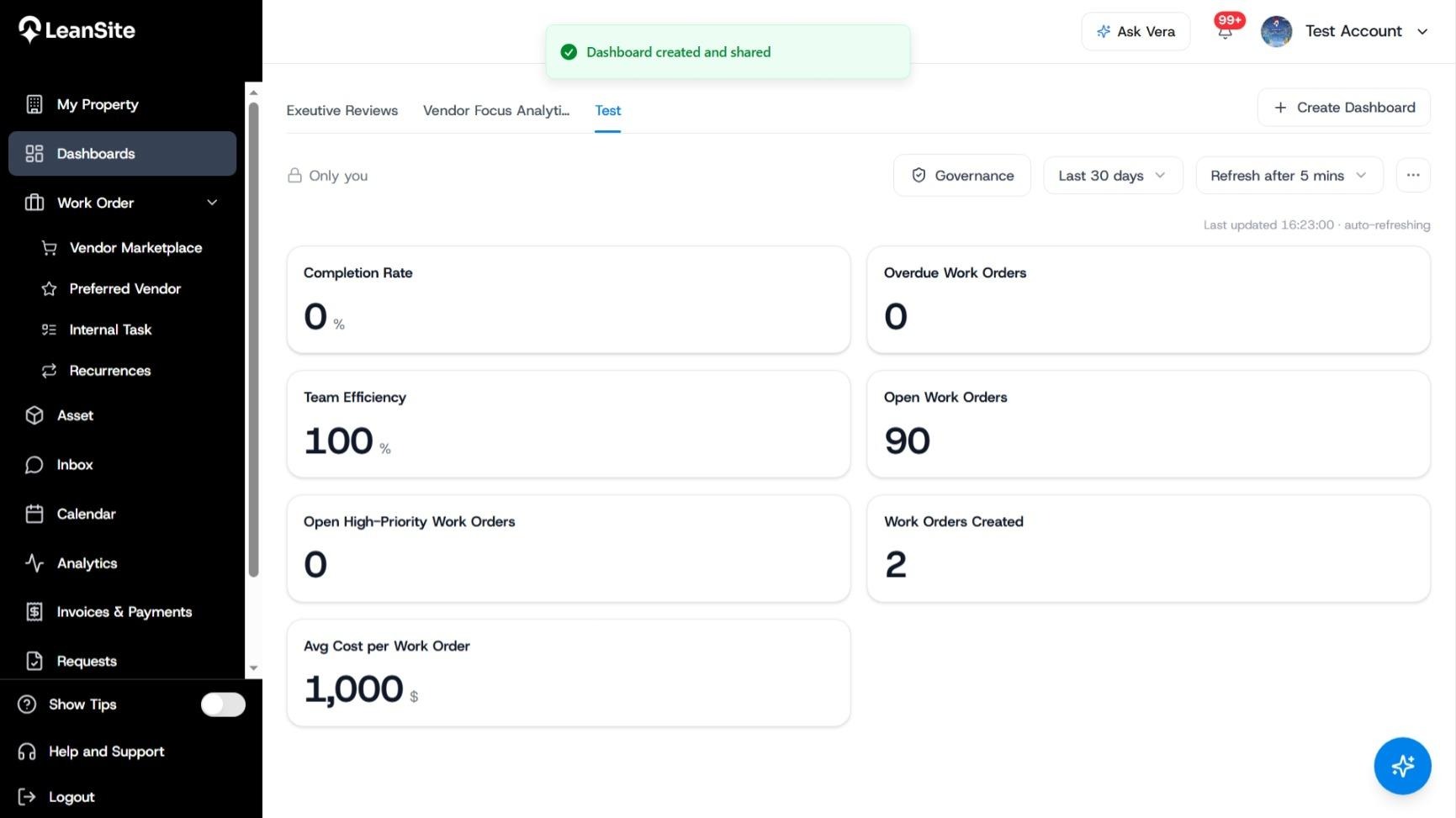
Completed dashboard with operational widgets and the Dashboard created and shared confirmation.

Expected result

The dashboard appears as a named tab in Dashboards, contains the selected widgets and uses the sharing level you chose.

If the figures differ between viewers

Check the dashboard’s time range, refresh interval and the viewers’ property permissions. A shared dashboard can display different values when viewers have access to different locations. Review the source Analytics page when a metric needs deeper investigation.

Still need a hand?

Contact your Customer Success Manager or reach our support team.

Contact Support

More from the Knowledge Base

Keep exploring guides for facility and property operations.

General
Getting Started: Understanding the FM Portal

The LeanSite FM Portal brings property records, work orders, assets, messages, schedules, analytics, payments, approvals and support into one workspace. Start…

Read guide
Payments
Submit an Invoice and Track Payment as a Vendor

Submit an invoice only after the linked external work is eligible for invoicing and its completion evidence is recorded. Review the authorised amount, enter…

Read guide
Work Orders
Respond to Marketplace or Direct Work as a Vendor

Open each new opportunity or assignment from its LeanSite notification, confirm the property, asset, scope, deadline and commercial terms, then respond through…

Read guide
Leansite

Simplifying property operations for facility managers and operators. From work order scheduling to vendor management and inspections, Leansite helps you stay on top of every detail.

Ask AI about Leansite

Get an instant, sourced rundown from your assistant of choice.

Company

Mission & VisionOur TeamCareersPress & Media

Members of

IFMA — International Facility Management AssociationOHI — Advancing Outdoor Hospitality

Ready to get started?

Dallas Texas, United States.
[email protected]
(833) 546 - 7427
Request a Demo

Copyright © 2026 Leansite. All Rights Reserved

Privacy policy